|
Navigation bars (nav bar), a set of buttons with links to pages throughout the site, are a common feature on web sites. The purpose of the nav bar is to make navigating your site intuitive and attractive. The different buttons represent different states of navigation: Up, Down, Over, Over While Down, and link to pages throughout the site. Fireworks streamlines the creation of a nav bar including all graphics, HTML links and JavaScript to control the rollovers. All that is required of you is: one graphic, edit the differences and supply the links. |
|
Tip: There are as many variations of a nav bar as there are web developers. Following these steps will give you the tools to implement your design. Click here to see an example of the finished nav bar. |
Start with the button with the longest word or text string.
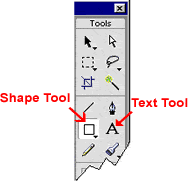
| 1 | Use the Shape tool to make a shape. |
||||
| 2 |
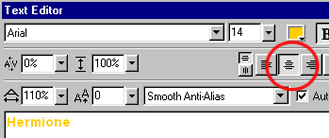
Use the Text tool to put text on the shape.
|
||||
| 3 |
Hold down the Shift Key and click both the text and the shape beneath it to select both. Tip: There should be a blue line around each element to indicate they are both selected. |
||||
| 4 | Insert > Convert to Symbol, select the Button Radio button (naming it is optional). |
||||
|
| 1 | Double-click on the button to open
the Button Editor |
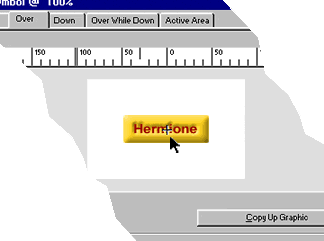
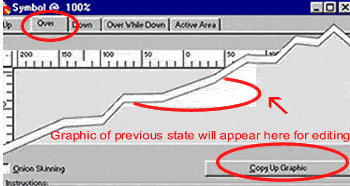
| 2 | Click the Over tab. |
|
|
|
| 3 |
Click Copy Up Graphic. The Up state will appear, to be edited to its Over state. |
| 4 |
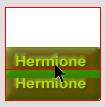
Edit the graphic to its Over state.
Make the changes that will appear when the cursor rolls over the button. |
| 5 | Click the Down tab |
| 6 |
Click Copy Over Graphic The Over state will appear, to be edited to its Down state. |
| 7 |
Edit the graphic to its Down state. Make the changes that will appear when the button is in the Down state, that is, when the user is on the this button's page. Tip: If the nav bar will be used without a frameset, check the Show the Down State on Load box to show the state when the page loads. To make practicle use of this there should be a nav bar for each button. |
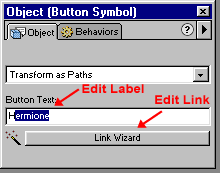
| 1 | Click the Link Wizard bar. |
|
|
| 3 |
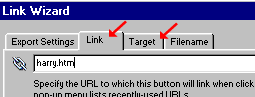
Click the Link tab. |
| 4 |
Type or paste the URL in the field. Tip: Create a space holder page in Dreamweaver in the folder of the page from which this nav bar will be used... To eliminate potential errors. |
| 5 | Click the Target tab. |
| 6 | Set the target either choose from the drop-down menu or type or paste your frame name in the field. |
| 7 |
Click OK. Close the Button Editor. |
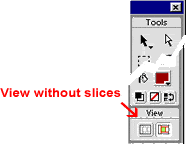
| 1 | Choose Window > Tools > View > Hide Slices (left icon). |
|
|
|
| 2 | Click the Preview tab of the document window. |
| 3 |
Roll and click your cursor to test the button. |
This nav bar will have three buttons total and it will be vertical.
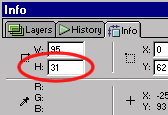
| 1 | Find the height of the button.
|
||||||||
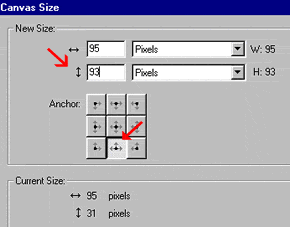
| 2 | Multiply the height of the button by three to know how big a canvas you need.
|
||||||||
| 1 | Choose Window > Tools > View > Show Slices (right icon) to make the button slice visible. |
||||||||||
| 2 |
Hold down the ALT (Macintosh, Option) key + Click and Drag to duplicate the button.
Repeat to create three buttons. |
||||||||||
| 3 |
|
||||||||||
|
|
|||||||||||
| 4 | Save the file. |
||||||||||
| 5 |
Choose the document preview tab to test all the buttons. Tip: The links must be tested after the nav bar is in palace in the site folder. |
||||||||||
| 6 | Export HTML and image to the site folder. |