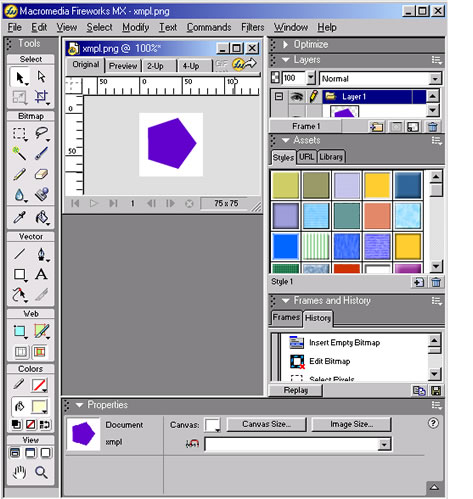
Fireworks MX (FW MX) has a new look, feel and new abilities. All menus have changed, the tools panel is reorganized, there are new panels and they are customized in a new way. Here is an introduction to the new menus, panels and tools and how to get the most out of them.
Roll your cursor over this image to see highlights of the Fireworks MX user interface. Click for details.
 |
|
|
|
|
|
|
|
|
Fireworks MX menus have been restructured to be more intuitive and to contain more options in the same amount of space. The new menu structure is organized to streamline your work flow.
|
The File menu has been reorganized and has new commands. Some features are highlighted below. |
|
The Open Recent (file) command now lists recently opened files in a fly-out menu. The command is available on both the Mac and Windows operating systems. |
|
Reconstitute Table… a new command that will create a Fireworks PNG file from a table constructed of HTML and images. This feature is especially usefully when working with an inherited site that doesn't include original files. |
|
The Insert menu options are now found in the Edit menu. Choose Edit > Insert to reveal these options in a submenu. |
|
The Select command has been moved to its own menu. All commands that include the select action are now contained here. |
|
Access to Fireworks Libraries now appears in the Edit menu. Choose Edit > Libraries to see these options. |
|
The View menu has access to an increased set of magnification increments. |
||||||
|
New Increments are:
Tip: Click and drag the zoom tool to zoom to any percentage between 6% and 6400%. |
||||||
|
The Select menu is a new addition to the Menu. |
|
All Select commands are now in one location. |
|
Marquee options have been moved to the Select menu. |
|
Save and Restore marqueed bitmap selections from this menu. |
|
The Convert to Symbol command is now here: The Symbol options are now consolidated under the Modify menu. Convert objects to various types of symbols, Edit symbols, Tween instances of symbols and break apart symbols from the sub menu are here. |
||||||
|
The Canvas adjusting commands are still in the Modify menu. However, now the Property Inspector may also be used to adjust the Canvas Size and Image Size. The dialog boxes will be familiar to users of previous versions of Fireworks. |
||||||
|
|
||||||
|
The Text menu has grown to accommodate the new feature – Checking Spelling…. |
|
The text tool can now be used directly on the screen. Tip:The familiar Text Editor is still available from the Text Menu. |
|
Text properties can now be seen and edited directly in the Property Inspector. Tip: Custom text styles can be created from the Style panel. |
|
Paragraph properties, paragraph indent, space above and below paragraphs, can now be edited in the Property Inspector. Leading units of pixel or percent can now be selected. Click here to see how the Property Inspector is used to adjust text properties. |
|
Spelling Setup—The first time you use the Spell Checker you will be prompted to select a dictionary and choose spell check preferences. Tip: You can avoid the prompt by choosing Text > Spelling Setup… a dialog box will appear to ask for your preferences. Use this command to edit your personal dictionary as needed. |
|
Spell Check—Choose Text > Check Spelling… and Fireworks MX will check the spelling of every text box in your PNG file. |
|
Fireworks extensions are now managed by the Macromedia Extension Manager. The Extension Manager is a free download at the Macromedia Exchange. Tip: The Extension Manager is automatically installed with the Macromedia MX Studio with FW MX extensions pre installed. |
|
Fireworks extensions are program add-ons written by individuals to extend the functionality of FW MX. Many are available as free downloads from the Macromedia Exchange, some are for sale by the developers at their site. See Fireworks Web sties (TechNote 13187) for a list of related sites where you can download various Fireworks assets including extensions. The extensions are installed in the Extension Manager which organizes and manages them for all Macromedia products that use extensions. In the Extension Manager, the extensions can be turned on or off, controlling whether they will appear in the user interface. Once installed, these extensions will appear as additional options in the FW MX user interface. A new Command, for example, will appear in the Command menu. Tip: The extensions are supported by the author and the extension discussion group. They are not supported by Macromedia Product Support. |
|
Learn an extension's use and how to access it by selecting it in the Extension Manager: choose Commands > Manage Extensions a description and the access menu will appear in the bottom window. For more about the Extension Manager and extensions see the Macromedia Exchange page. |
|
The Xtras menu has been replaced by the Filters menu. |
|
An additional filter from Alien Skin Eye Candy, demonstrated here, adds artistic edges to a bitmap image. Tip: This is a subset of the six filters that make up the full version of Alien Skin Splat! Fireworks users are eligible to upgrade to the full version at a special price. |
New Divided Tool Panel |
||||||||||||||||||||||||||||||
|
|
The Tool Panel is now organized by type. This will help you keep track of what mode you are working in. Roll your cursor over the image on the left to see how the tools are organized. Descriptions of the sections are given below.
|
||||||||||||||||||||||||||||
New ToolsFireworks MX has additional tools. New Tools are identified here. |
|
|
Blur—Use this tool for a paint brush effect. Control the size, shape, intensity and blending mode of the "brush" in the Property Inspector. |
|
Sharpen—A variation on the Blur tool with controls that define the size, shape, intensity and blending mode of the "brush". The effect will selectively sharpen specific portions of an image visually (like painting) without the need of creating a marquee selection. Here are the Sharpen tool setting options in the Property Inspector. |
|
Dodge—Applies a greater amount of exposure to lighten the painted area. It defines the size, shape, exposure, edge and range of the "brush". The effect of the tool is to selectively dodge or "brush" specific portions of a bitmap image visually (like painting) without the need of creating a marquee selection. Here are the Dodge tool setting options in the Property Inspector. |
|
Burn—Applies a lower amount of exposure to darken the painted area. It defines the size, range, exposure, and shape of the "brush." The effect of the tool is to selectively burn specific portions of a bitmap image visually (like painting) without the need of creating a marquee selection. Here are the Burn tool setting options in the Property Inspector. |
|
Smudge—Use this tool to soften the edges of an image, give your image a smudge effect—according to the settings in the Property Inspector. |
|
Rubber Stamp—The rubber stamp tool has been enhanced so that the cursor reflects the state of the chosen pixels, i.e., capturing point, and offset from the target. A shown in the Property Inspector. |
|
Gradient—The gradient tool adds a new dimension to the Fill tool. Quickly fill an object with a gradient and retain the properties of the last used gradient. A gradient fill can have one or more of the colors set as transparent. See this example. Tip: GIF transparency is either on or off. For a smooth gradient transparency save the image as a JPG. |
|
Zoom—The Zoom tool abilities have been expanded to the View commands > Zoom In and Zoom Out as well as the Zoom tool. Now Fireworks supports variable zoom levels. Click and drag the cursor on a desired area to zoom in and out. Additional zoom level increments, 66%, 150% and 300%, have been added. |
|
Text tool—has expanded its ability to edit text onscreen. |
|
Property Inspector—A powerful addition to FW MX. It replaces these Panels and brings more control in to a central location.
|
||||||||||
|
Answers Panel—The Answers panel provides convenient access to a vast source of information. From the Fireworks Help files, tips, TechNotes, Extensions, and dynamically, while you are online, right from the MX application. |
||||||||||
|
Optimize Panel—and the Color Table have been merged. |
||||||||||
|
Layers Panel—When dragging a layer or object up or down, Fireworks now auto-scrolls the layers panel allowing objects and layers to be moved beyond the bounds of the viewable area without manually scrolling the panel. |
||||||||||
|
Style Panel—A text style, controlling alignment, antialiasing, autokerning, horizontal scale, range kerning, leading and other text properties can be created here. |
||||||||||
|
Info Panel—The information layout is reversed from previous versions of Fireworks. Tip: If the X, Y location and W, H fields are not visible, drag the panels bottom border down to reveal these settings. |
||||||||||
|
Align Panel—The Align panel Provides many visual alignment options in a single location. Tip: This function is an example of a Flash movie running inside of Fireworks to control the alignment of articles on the canvas. |
||||||||||
|
Document Window—has a Quick Export button that appears in the top-right of the document window. It provides an easy-access shortcut list of the common export options, listed by application. Tip: This is demonstrated in the MX interface highlights at the beginning of this TechNote. |
||||||||||
|
Panel Preferences—Fireworks MX provides the option to enable/disable the icons on Panel tabs Edit > Preferences… General. See The launcher bar does not appear by default in Fireworks MX (TechNote 16382). This preference setting will also show the Mini Launcher familiar to Fireworks 4 users. |
||||||||||
|
Panel View Controls—Normal, Expanded and Full Screen control buttons are located in the Toolbar. |
||||||||||
|
Rearrange Panels—Panels can be taken out of their the default group, docked with other groups and/or placed in custom groups. Click the menu in the top right corner or right-click (Mac use Title Bar buttons) the Title Bar of any panel for these options. |
||||||||||
|
|
|
|
|
How to change the location of submenus in a Fireworks Pop-up Menu |
|
|
|
|
|
|
|
Changes in the Button Editor in Fireworks MX: Global and Instance level properties |
|
|
|
|


