Dynamic LED Control
Author : V.Girish
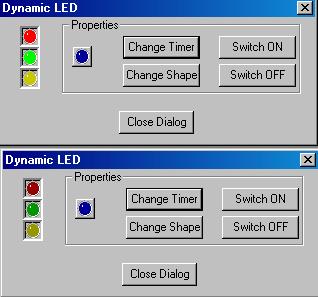
Environment: Compiled using VC6.0 Sp3 and tested using Win95/98 WinNT4.0 and Win 2000
This class enables the user to have a blinking effect with a control over the blinking rate
per second. They can set the timer of the control. Sometimes,it would be better to show the status
of an ongoing operation or if there is any warning , it would be better to display it using an LED
control. I faced this situation when developing for a client whose end users were security guards
who had no knowledge of computers. So, the interface for them was designed like a TV remote control
and I had to incorporate a lot of controls like this in order to make them feel at ease. I would
like to tell the people who are going to use this class that its best suited for small controls
rather than making it bigger where the effect is lost. It looks more like an ellipse than a LED
at bigger proportions.
Implementation
To use the CDynamicLED class , you can follow the guidelines stated below.
1. Insert a new static frame where you want the LED. Setting the client edge property or the modal
frame property for it looks better.
2. Rename the static frame to something other than IDC_STATIC. Name it something like IDC_DYN_LED.
3. Using the MFC ClassWizard, add a new member variable for IDC__DYN_LED. The category should be a
control and the Variable Type should be CDynamicLED. If the CDynamicLED type does not show up in
the Variable type dropdown combo, then you need to recreate the .clw file. Delete the .clw file
and run the class wizard again.
4. Remember to add "DynamicLED.h" in your dialog's header file.
Operations
The various features in the CDynamicLED Class are outlined below.
1) SetLED(CWnd *pWnd, UINT nIDColor, UINT nIDShape, int nTimerInterval)
where pWnd is your static window where you want the LED, nIDColor can be any of the following values
ID_LED_RED
ID_LED_GREEN
ID_LED_BLUE
ID_LED_YELLOW
NIDShape can be any of the following values
ID_SHAPE_ROUND
ID_SHAPE_SQUARE
Here, the nIDShape value determines whether the shape of the LED would be round or square.
And the nTimerInterval parameter denotes the number of milliseconds. The LED would flash once in
every period denoted by this parameter. You can either have a rapidly blinking LED by setting this
parameter to 100 or have a normally blinking LED which blinks once per second by setting this value
to 1000.
This is the ONLY function that you need to know to use this class.
2) Incase you need more functionality to switch on or switch off the led , you have 2 functions named
SwitchOn(); and SwitchOff();
These 2 functions don't need any parameters.
Now lets go to the implementation of this control in your dialog based application.
I have assumed that you have named your dialog class as CMyDialog
Remember that you have created a variable for this static frame. If you have forgotten
about that, please refer to the implementation section above. Assuming that you have named
your variable as m_dynLEDRed for a LED control which is round in shape, going to blink once
every half a second and which is red in colour.
You have to add the following lines in your OnInitDialog function. I have also assumed that you
have named your static frame IDC_STATIC_LED_RED.
CWnd *pWndRed = (CWnd *)GetDlgItem(IDC_STATIC_LED_RED);
m_dynLEDRed.SetLED(pWndRed,ID_LED_RED,ID_SHAPE_ROUND,500);
Incase I want to change the blinking interval of the LED at runtime from half a second to a full
second, then you can use the following code.
// Change the time interval of the LED to 1000
CWnd *pWndRed = (CWnd *)GetDlgItem(IDC_STATIC_LED_RED);
m_dynLEDRed.SetLED(pWndRed,ID_LED_RED, ID_SHAPE_ROUND,1000);
To change the shape of the LED from round to square or vice versa , you can follow this piece of code.
// Change the shape of the Blue LED from round to square
CWnd *pWndBlue  = (CWnd *)GetDlgItem(IDC_STATIC_LED_BLUE);
m_dynLEDBlue.SetLED(pWndBlue,ID_LED_BLUE, ID_SHAPE_SQUARE,1000);
If you want to turn off the LED ( I mean switching it off ) , you can use this .
// Switch OFF the Red LED
CWnd *pWndRed = (CWnd *)GetDlgItem(IDC_STATIC_LED_RED);
m_dynLEDRed.SwitchOff();
and to switch it on again, use
// Switch ON the Red LED
CWnd *pWndRed = (CWnd *)GetDlgItem(IDC_STATIC_LED_RED);
m_dynLEDRed.SwitchOn();
Thats all folks. All luck and have a great time.
With warm regards,
V.Girish
Downloads
Download demo project - 12KB
Download source - 4KB
History
Date Posted: July 22, 2002
|