

To access System Restore:
1.Click the Start button
2.In the Start Search box type System Restore
Enabling System Restore
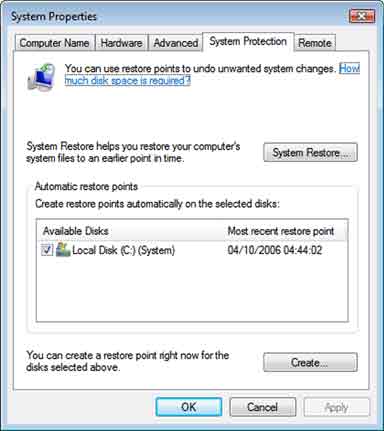
To enable System Restore simply place a tick in the box next to the hard disk drive in the Available Disks box (Fig. 1). If you have more than one hard disk drive on your computer then you will need to enable System Restore on each drive present in the list. When System Restore is enabled, shadow copies of files are also created if they have changed since the last restore point.
Creating a restore point
By default, System Restore points are created by Windows Vista every time a major change happens to your computer. But, if you want to create a manual restore point then follow the steps below.
1.Click on Open system protection at the bottom of the main window.
2.In the System Properties window, click on the Create button to begin.
3.Give the restore point a name and click on the Create button.
Restoring from a restore point
When using a system restore point, you can either use the recommended one or you can choose a different one from a list.
To use a restore point:
1.Place a dot in Recommended restore and click on the Next button.
2.If you are happy with this restore point, click on the Finish button.
3.System Restore will now restart your computer to begin. You will need to ensure that no programs are open.