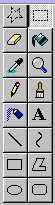
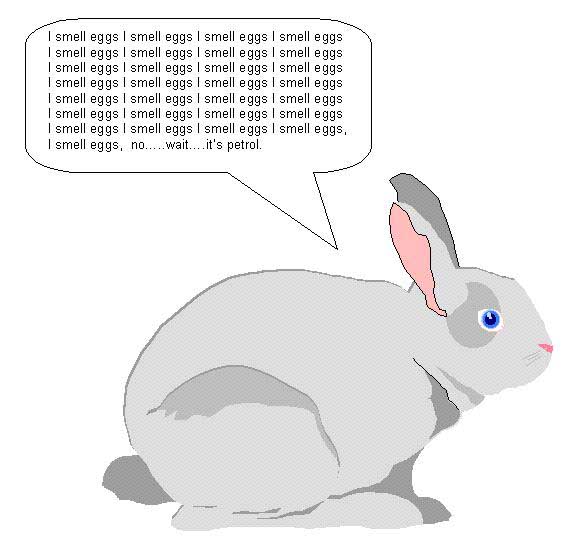
Thanks for putting in the effort to crop your image - it makes things a lot easier for us! So.......... Cropping the image to the correct size: Now you have a copy of how the screen looked in Word with your picture on it, and you need to crop it down in size. To give yourself control of the crop tool, first look to the toolbar on the left. Press the star shape and then back to the square shape on the top right of the toolbar. Saving the cropped image: Now drag a square around the area that you wish to remain in your picture. Select Edit>Copy The Final Image: Select File>New Select Edit>Paste Answer �Yes� to enlarge the bitmap. Now adjust the size of the image by dragging the little black boxes on the edge of the canvas snug to the edges of your image. You should now have something like this: A picture with no Word related junk visible. |
 |
 |
| Finally you need to save this image you made as a JPG to make it nice, small and friendly so CLICK HERE |