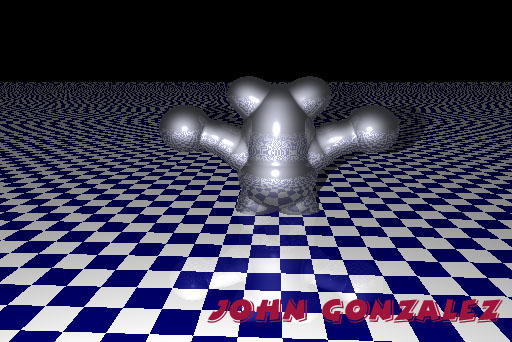
The first thing you have to do is to make sure you have the following programs: Blob Sculptor, Adobe Photoshop and POV-ray in order to make a blob and put it in your webpage. You can get these programs from here. Go to Blob Sculptor and create a blob by holding the command key and press B. Note, you can make more than one blob. Once your done creating your blob, save as anything you want (I would save it as your initials) and at the end it should be .BLB. Then, go to file and go to Export POV-Ray.... and save
After exporting to POV-Ray, go to POV-Ray. Open the file that you saved and go to render and go to start rendering. Once you seen your Blob, you have to make a background. To make a background, go to templates and go down to Ready-Made Scenes. Press on one and start redering. If theres a big colorful circle you should remove. In the box where you create theres something that says in the sentence sphere. Dont' forget to save your work! After, exit POV-ray and open your file in Adobe Photoshop. Then go to save as your work under jpg. Then make a website and upload the file. Then make a image and you got it to your website! To make a moving one you have, you have to have gifbuilder. Make another blob that looks like your original file but in a different place.
John Gonzalez, 7th grade,class 707 Mr. Gomez