Home > Formatting
Tips to Make Your Contract More Readable without Changing a Word
by Chris Lemens
This is an unproofed work in progress.
1. Use Styles not Formatting
In Microsoft Word, there are two ways to make a piece of text look the way you want. The first is to use the Format Font and Format Paragraph commands. This lets you change the appearance of the text as much as you want. The problems with this approach are that your formatting will lack consistence -- especially over time -- and that you are missing out on other benefits of Microsoft Word.
The second way of making text look the way you want is to use Format Styles. This allows you to create a set (called a Style) of things that you could have accomplished using Format Font and Format Paragraph. You can then apply them to text using the drop box in the Formatting tool bar.
Word comes with many styles pre-loaded. For example, the base Style of all text is called Normal. Other very useful ones are called Title, Heading 1, Heading 2, etc., Footer, Header, Page Number, and so on. The other huge benefit you can gain from applying styles consistently is that these styles can be used to automatically create a table of contents for your agreement.
If you need multiple sets of styles, create each one in a new, blank document, and save it as a Document Template (*.dot) file. Then, when you need to create a file using those styles, create a new document using that template.
2. Limit the Depth of Parts
I frequently see agreements that have too much depth in part levels. For example, you might have a reference to Part I.A.1.a.i.m. If that is the result of intense negotiation where each side continually added caveats to the other's insertions, it might be tolerable. However, when you see this in a form agreement, it is rdiculous.
As a rule of thumb, I do not allow more than three part levels in my contracts. When your document has too many part levels, you need to re-organize it. Here are some of the main ways to do that:
- You can probably find many top-level parts that are uselessly overbroad. For example, any title like "Miscellaneous" or "Legal Terms" adds nothing. Take it out and promote its sub-parts to top level parts. Do the same with each lower level.
- If a part has only one sub-part (like there is a I.A.1, but no I.A.2), take out the sub-part heading.
- If you are getting too much depth of part levels because your exceptions a a rule are sub-parts, think about putting your exceptions on the same part level as the rule, and start the rule with an appropriate cross-reference.
- If any particular part (e.g., I.A) has more than 15 subparts (e.g., I.A through I.CC), it needs to be broken up at the least and may need to be reorganized.
3. Use Descriptive Part Labels
Many lawyers us the old form of outline numbering that we all learned in junior high school. Further, they do not put the title for a part in a separate line from the part itself. Th result often looks like this:
|
|
I. Main Part. Here is a bunch of stuff to read.
A. Sub Part. Here is some more to read.
1. Sub Sub Part.
a. Sub Sub Sub Part. Now here is some more text.
|
The first problem with this method is that you have to flip back to prior pages in order to figure out what part you are referring to. That's bad for any document that you plan to ever look at in the future.
A better numbering system is to include the full number in each part that is numbered. In websites, designers call this "bread-crumbing" because it helps you locate where you are. It looks like one of these or some combination of them:
|
|
1. Main Part
1.1. Sub Part
1.1.1. Sub Sub Part
1.1.1.1. Sub Sub Sub Part
|
01. Main Part
01.01. Sub Part
01.01.01. Sub Sub Part
01.01.01.01. Sub Sub Sub Part
|
The second problem with this numbering system is that it runs title into text. This is particularly a problem with contracts that contain a standard clause stating that part titles are not to be considered when interpreting or construing contracts. A better approach is to separate the title and the text into separate paragraphs, like this:
|
|
1. Main Part
Here is some text. Here is some more.
|
Additionally, this approach allows you to make better use of Microsoft Word's Styles, which are best and most easily applied to entire paragraphs.
4. Use Automated Part Numbering as Part of Your Styles
Microsoft Word allows you to use automatic numbering. Many people simply apply this using the Format Numbering feature from the menu bar or the equivalent toolbar button. Don't! That type of numbering gets thrown off way too easily. Instead, when you set up your styles, include your automatic numbering as part fo the style.
5. Use Automated Cross-Referencing to Part Numbers
|
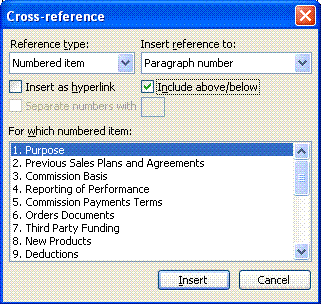
One of the huge benefits of using Styles with automatic numbering is that you can insert cross-references to them that will automatically update as you change your document.
To insert a cross-reference, simply choose Insert > Reference > Cross-Reference from the menu bar.
In the dialog box that pops up, make sure that the "Reference type:" is "Numbered item" and that "Insert reference to:" is "paragraph number". If you want to get really fancy, you can check the box that says "Include above/below" to include a reference to the numbered part being above or below the corss reference (like "Section 1.01 above"). If you keep the "Insert as hyperlink" box checked, the document will jump to that section whienever you click on it; I find ths annoying, so I uncheck that box.
Finally, from the list in "For which number item:" (which includes all of the part headings to which you applied automatic numbering), select the item to be cross-referenced and click the "Insert" button. If you have more than one (like in a list), select the next one and click the "Insert" button until you have done them all. Then click the "Close" button. (If you did more than one, you now need to go back and put commas between them.)
|
|
6. Use Part Designations in Your Part Numbering
One of the stock clauses that I have seen in many contracts is something to the effect that the terms "article" and "section" and "part" and "paragraph" and any other similar terms all mean the same thing. This is because drafters did not want to accidentally refer to a subpart when they were trying to refer to a part (or vice versa). One way to avoid this problem entirely is to include part designations in your part numbering. For example, I use the following part numbering almost exclusively:
|
|
Article 1. Main Part
Section 1.1. Sub Part
Subsection 1.1.1. Sub Sub Part
|
Using this type of part designation consistently also assists in negoatiation, which is more frequently conducted by telephone and email than in the past, because it gives you the ability to refer to a part unambiguously.
Further, if you use automated part numbering and cross-referencing as described above, your cross-references will automatically include the Article, Section, and Subsection designations.
7. Use Consistent and Distinct Clause Numbering
Within numbered parts, you will still have clauses and lists that you will need to numbers for the sake of clarity. The main reason for this type of numbering is to clearly break apart items in a list where commas and semi-colons may confuse a dense reader. Ideally, this should be limited to clauses -- i.e., if you think of numbering full sentences, you should consider part numbers instead. Long lists should be broken out into separate lines (as in example A below). Short lists can remain inside a sentence (as in example B below). For most lists (especially long ones), use arabic numberals (e.g., 1, 2, 3) in parentheses (as in example A below). If you have multiple short lists in a single part, use letters, with the first letter of each list separated by a gap from the last list (as in example B below). When you have numbereded clauses with subclauses, use numbers then letters or vice versa (as in example A below). Never use roman numerals if you can avoid it.
|
Example A
|
Example B
|
|
Each work order will contain the following information:
(1) the names of the parties;
(2) the date of the work order;
(3) the services to be performed, including:
(a) the general nature of the services;
(b) the personnel performing the services; and
(c) the quality levels to be provided in the services;
(4) the dates that the services are to be performed;
(5) the price to be paid for the services; and
(6) any special terms applicabe to the services.
|
The foregoing indemnity will not apply if the claim would not constitute such an infringement in the absence of any the following: (a) Client's use or combination of any of the Products with hardware, software, or data other than those supplied by Vendor, (b) any modification of any Products by anyone other than Vendor, or (c) the use of other than the latest release of Products. Following notice of a claim, Vendor may either (m) procure for Client the right to continue to use the infringing item under this Agreement, (n) replace or modify the infringing items to make them non-infringing, while affording substantially equivalent functions, or (o) if neither of the foregoing are reasonable, terminate the license for the infringing items and, upon return thereof by Client, refund the fees paid by the Client therefor.
|
I generally do not use automatic numbering for clause numbers. Automatic numbering is great for parts because they are separated by expanses of text and I may need to cross reference them. By contrast, clause numbering is usually bunched together and does not need a cross reference. If you disagree, you should construct at least two styles that you apply to lists. This will require you to break out all lists, as in example A above. I recommend a "List 1" Style that is main points on the list (items (1) - (6) in example A above) and a "List a" Style that is sub-points on the list (items (a) - (c) in example A above).
The most important point is to be consistent in clause numbering. The consistent use of clauses numbers lets the reader more easily understand the material you are presenting.
8. Use Consistent Fonts
For some reason, many people seem to believe that adding more fonts makes a document look better. In reality, it is usually a distraction. Pick one font and stick to it unless your use of different fonts conveys information in addition to the text (like the fact that, on this web page, font in courier font is an example). For contracts that are read frequently, a serif font (like Times Roman) reads more easily. For contracts read infrequently, a sans-serif font (like Arial) uses less space, so less paper to be stored. Then follow these rules:
- Only use black fonts. Everything else copies poorly.
- Font sizes should not change, except that the title can be larger.
- Defined terms should be in bold wherever they are defined, so that they can be found more easily on the page.
- Avoid italics. They are hard on the eyes.
- Avoid underlining. It does not fax or scan well on older machines and may be confused with redlining marks.
- Create a Style called "Empahsis" and use it on any text should be emphasized (for example, any that must be conspicuous at law). This can be an exception to any of the rules above.


