|
1)
Download Kernel Source
There are many places where you can get the kernel source, but I chose
to get mine from Redhat's site as this contains the .config files used
in Fedora Core 3. You can get the source here.
Save the downloaded file in /usr/src/redhat/SRPMS/
2) Unpack
the Kernel Source
Simple, really...
| 1 |
cd /usr/src/redhat/SRPMS |
| 2 |
rpm -Uvh kernel-2.6.9-1.667.src.rpm |
| 3 |
cd ../SOURCES |
| 4 |
bzip2 -d linux-2.6.9.tar.bz2 |
| 5 |
cd /usr/src |
| 6 |
tar -xvf redhat/SOURCES/linux-2.6.9.tar |
| 7 |
ln -s linux-2.6.9 linux |
Now you have the 2.6.9 kernel
source installed and ready to configure. On to the next step...
3)
Configure the kernel
You'll need to configure a few things in your kernel to ensure that everything
works correctly. My assumption is that you have just installed a clean
Fedora Core 3 system and downloaded and unpacked the kernel as I described
in step 2 above.
Hopefully you already know
a thing or two about configuring a linux kernel, so the following won't
be too new to you. If not, then good luck ;) Don't worry - it's not that
hard.
Here goes...
| 1 |
cd /usr/src/linux |
| 2 |
cp /usr/src/redhat/SOURCES/kernel-2.6.9-i586.config
.config |
| 3 |
make xconfig |
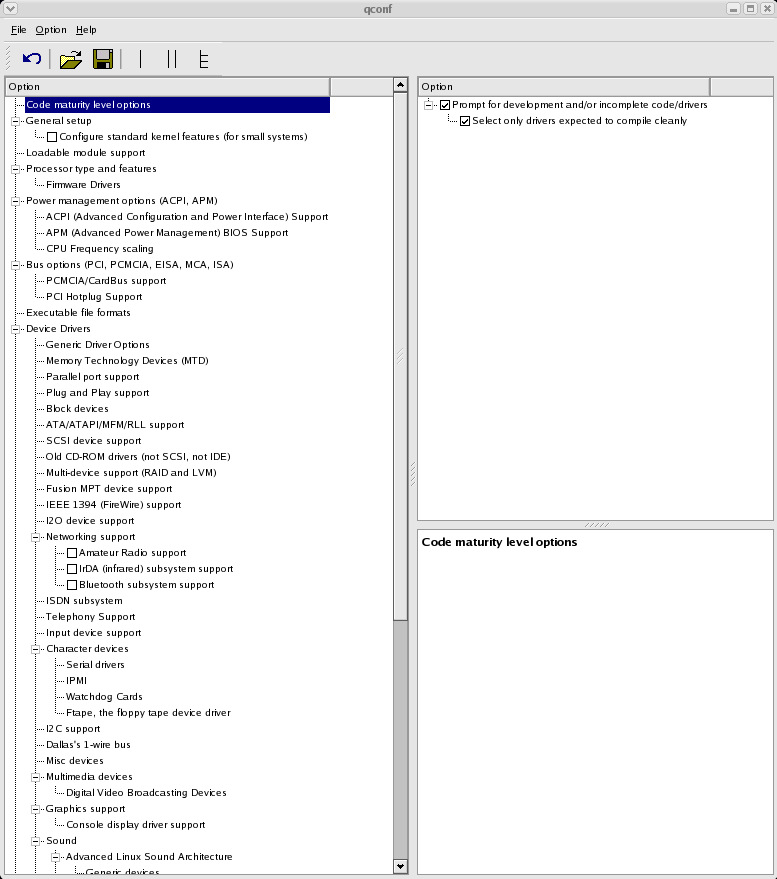
A window should now appear
that looks something like this (click on the image to make it bigger):
At this point you may want
to configure a whole load of things. The default kernel has many things
switched on that you probably don't want. However, I'm not going to get
into that here. There are only 4 configuration changes that you'll need
to get the ADSL card working and they are described in detail below:
| 1 |
Find the section
"Networking Options". This can be found by scrolling down
to "Device Drivers -> Networking Support" on the tree
on the left. Then select "Networking Options" in the pane
in the top right.
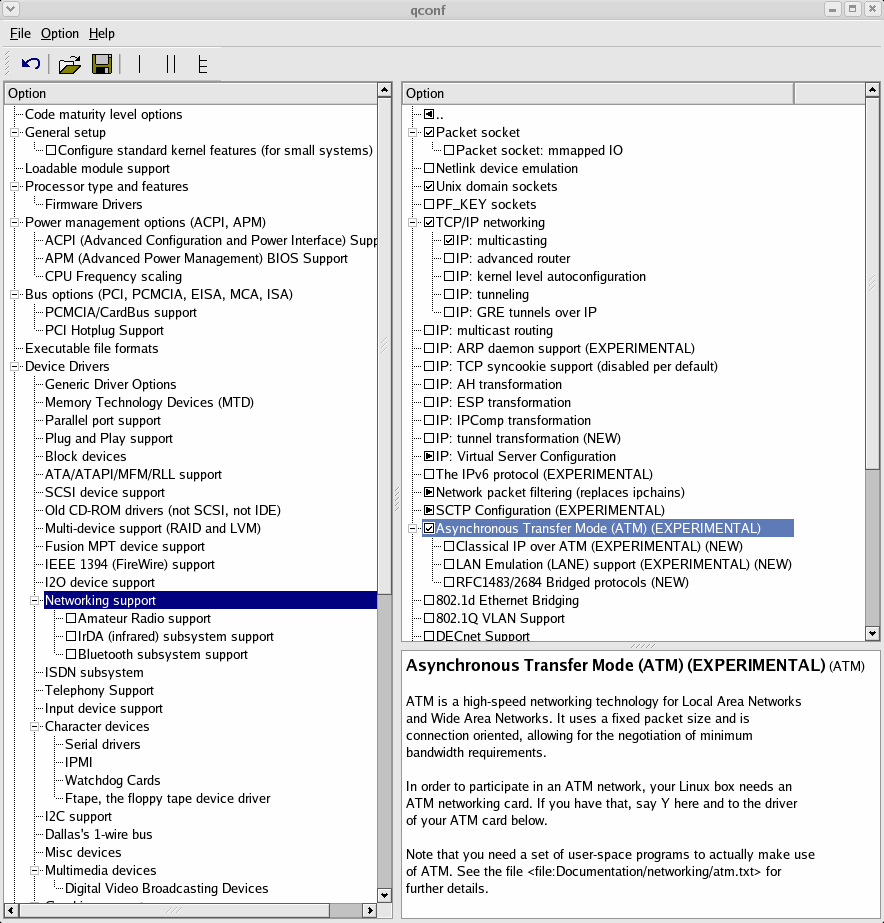
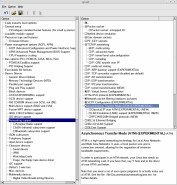
Scroll down in the top
right hand pane until you find "Asynchronous Transfer Mode
(ATM) (EXPERIMENTAL)". Check this is ON. Things should like
something like this:
|
| 2 |
Find the section "Network
Device Support". This can be found by scrolling down to "Device
Drivers -> Networking Support" on the tree on the left.
Then select "Network Device Support" in the pane in the
top right.
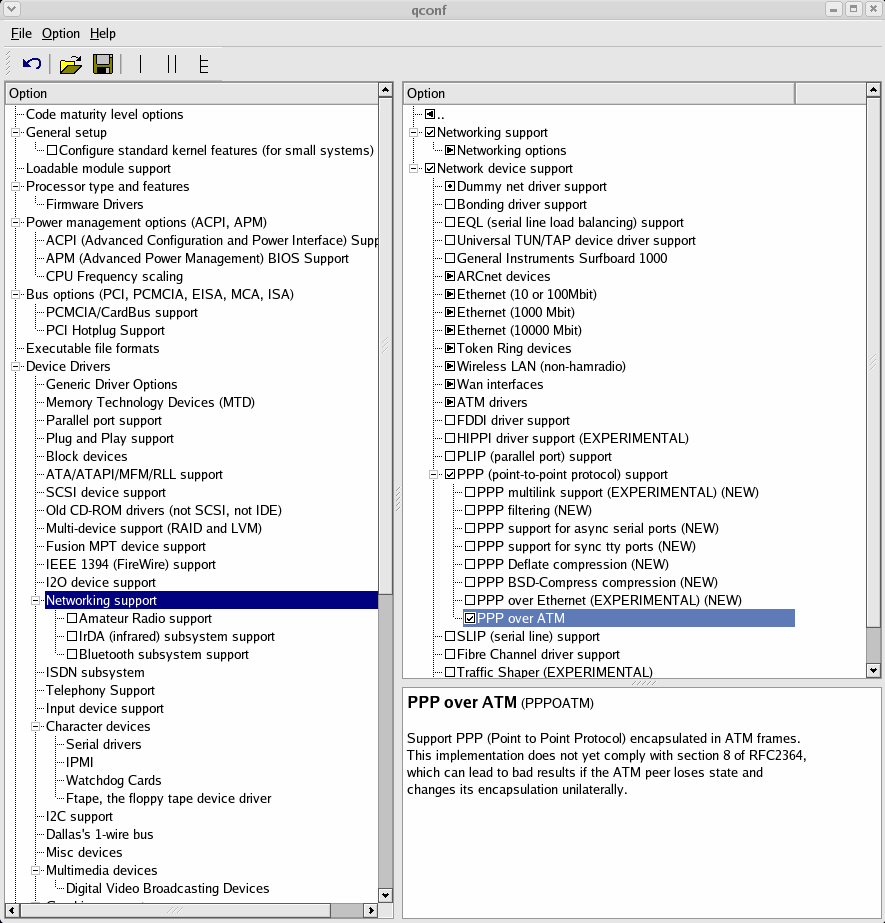
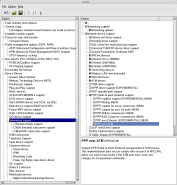
Scroll down in the top
right hand pane until you find "PPP (point-to-point protocol)
support ". Check this is ON. A set of options should appear
under PPP (point-to-point protocol) support - find the one called
"PPP over ATM" and switch this one ON. Things should like
something like this:
|
| 3 |
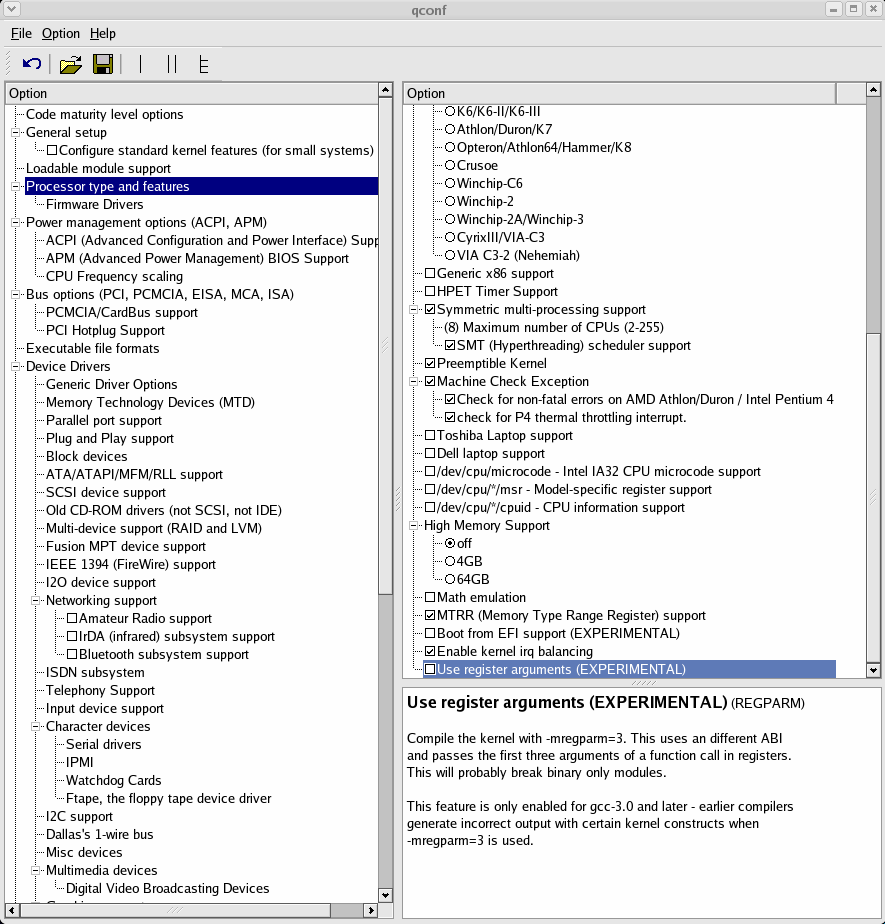
The last option you need
to set is the 'Use register arguments' option to OFF.
Find the section "Processor
type and features" (it's near the top on the left hand pane).
Scroll down to the bottom of the list on the right and ensure that
"Use register arguments (EXPERIMENTAL)" is OFF. Things
should now look something like this:
|
| 4 |
Now click on 'File',
'Quit', 'Save Changes'.
|
NOTE: When I did all
the above, my kernel failed to compile at first. I resolved the problem
by running make xconfig
again and disabling all the SCSI related settings and trying again. I
don't know if you'll need to do this - I hope not, especially if you require
SCSI support in your kernel!
4)
Build, install and boot the new kernel
I am not going to attempt
to tell you all you need to know to build a new kernel - there are plenty
of other guides around; just use google to find some help.
However, just for completion,
I'll give the basic commands for building the new kernel. This worked
for me, hopefully it'll work for you too...
| 1 |
cd /usr/src/linux |
| 2 |
make |
| 3 |
make modules |
| 4 |
You will now have a kernel
waiting to be installed sitting in /usr/src/linux/arch/i386/boot/bzImage.
To install the kernel, copy this file to /boot/vmlinuz-2.6.9-1.667-CUSTOM.
cp /usr/src/linux/arch/i386/boot/bzImage
/boot/vmlinuz-2.6.9-1.667-CUSTOM
|
| 5 |
Now you need to install
the kernel modules:
cd /usr/src/linux
make modules_install
|
| 6 |
Configure Grub with the
new kernel, keeping your old kernel available in case something
goes wrong:
Add the following to
the end of the file /boot/grub/grub.conf:
title Fedora Core
3 ADSL (2.6.9-1.667-CUSTOM)
root (hd0,0)
kernel /boot/vmlinuz-2.6.9-1.667-CUSTOM ro root=/dev/md0
rhgb quiet
initrd /boot/initrd-2.6.9-1.667-CUSTOM.img
NOTE 1) You will
need to check that the line containing root
(hd0,0) matches with your existing entry for the section
that's above the new section. This represents the disk and partition
where the boot loader will look for the kernel.
NOTE 2) I have
a raid partition, hence I have specified "root=/dev/md0".
It's quite likely yours will be different - just copy the root=
tag from the section that's
above for the old kernel.
|
| 7 |
Now you need to create
the initrd image.
mkinitrd /boot/initrd-2.6.9-1.667-CUSTOM.img
2.6.9
|
| 8 |
You can now reboot. When
the grub loader starts, hit escape and select your new kernel to boot
from. |
5)
Download and build linux-atm
The package I used is available
here.
Note that you must use this one as I have changed it a little to make
it compile. Something to do with the newer gcc that is installed in Fedora
Core 3 (I think). The filename is "linux-atm-2.4.1-patched.tar.gz".
Save it in /usr/src. We'll need to move some of the includes in your linux
system around - you can move them back again later if you like.
| 1 |
cd /usr/include
|
| 2 |
mv linux linux_orig
|
| 3 |
ln -s /usr/src/linux/include/linux
linux
|
| 4 |
cd /usr/src
|
| 5 |
tar -xzvf linux-atm-2.4.1-patched.tar.gz
|
| 6 |
cd linux-atm-2.4.1-patched |
| 7 |
./configure
--prefix=/usr |
| 8 |
make (You'll
probably see lots of warnings - but it doesn't seem to matter
as far as I can tell...)
|
| 9 |
make install |
Some people have reported
that the pppoatm.so plugin doesn't get installed correctly. This is probably
because I have messed the package up - but I haven't had a chance to fix
it yet, so here's a work around...
You can check if this is
a problem for you by typing:
|
ls -l /usr/lib/pppd/plugins
|
If the result is something
like:
-r-sr-x--- 1 root root 7696 Nov
27 23:03 pppoatm.so
then all is well and you should
now continue to step 6.
However, if the result is:
-r-sr-x--- 1 root root 7696 Jan
24 21:07 /usr/lib/pppd/plugins
then you need to fix it as
follows:
| 1 |
cd /usr/lib/pppd
|
| 2 |
mv plugins pppoatm.so
|
| 3 |
mkdir plugins
|
| 4 |
mv pppoatm.so plugins
|
| 5 |
chmod 755 plugins
|
Now continue to step 6.
6)
Download and build the Conexant Kernel Module
I started with the drivers
downloaded from Patrick Mackinlay's web site - but I had to make a few
changes to get it to work with Fedora Core 3 on my machine. So, I've packaged
up my patched version here.
Download the file (CnxADSL-6.1.2.007-PIM-2.6-1.1-patched.tar.gz) and save
it in /usr/src. Now unpack, build and install as follows:
| 1 |
cd /usr/src
|
| 2 |
tar -xzvf CnxADSL-6.1.2.007-PIM-2.6-1.1-patched.tar.gz
|
| 3 |
cd CnxADSL-6.1.2.007-PIM-2.6-1.1-patched
|
| 4 |
make
|
| 5 |
make install
|
| 6 |
/sbin/depmod
-a |
7) Download
and build PPP over ATM with the plugin
Patrick Mackinlay's site has
a patched version that works just fine. It's available here.
Download the file (ppp-2.4.0b2-patched.tar.bz2)
and save it in /usr/src. Now do as follows:
| 1 |
cd /usr/src
|
| 2 |
bzip2 -d ppp-2.4.0b2-patched.tar.bz2
|
| 3 |
tar -xvf ppp-2.4.0b2-patched.tar
|
| 4 |
cd ppp-2.4.0b2-patched
|
| 5 |
./configure --prefix=/usr
|
| 6 |
make |
| 7 |
make install |
8) Configure
PPP to connect to your ISP
Patrick's site has the same
information, designed to work with BT in the UK. My instructions below
are specific to New Zealand ISPs. My ISP is quicksilver, though this should
work with any ISP - you'll just need to change the login details.
| 1 |
Edit the file /etc/ppp/options.
You'll need to replace your login and password details.
passive
defaultroute
usepeerdns
noauth
name "[email protected]"
user "[email protected]"
plugin /usr/lib/pppd/plugins/pppoatm.so
0.100
password
YOUR_PASSWORD
|
9) Startup
your ADSL connection!
| 1 |
/etc/init.d/cnxadsl start
|
| 2 |
Tail your /var/log/messages
file. On my machine, it takes a few minutes, but eventually I get
these entries:
Nov 28 20:04:18
localhost pppd[28780]: local IP address xxx.xxx.xxx.xxx
Nov 28 20:04:18 localhost pppd[28780]: remote IP address xxx.xxx.xxx.xxx
Nov 28 20:04:18 localhost pppd[28780]: primary DNS address xxx.xxx.xxx.xxx
Nov 28 20:04:18 localhost pppd[28780]: secondary DNS address xxx.xxx.xxx.xxx
Patrick's site shows
slightly different messages in the log files - I used to get these
on my previous install (Redhat 7.3) so I guess it's changed with
Fedora Core 3. Never mind - it seems to work anyway...
Now the connection is
up and running!
|
You can contact
me via email: [email protected]
Hope this is useful to someone!
Cheers,
Chris.
|