Getting Linux to Run on the
HP Pavilion N5415 Laptop
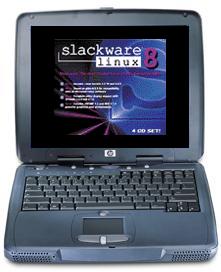
This document is meant to help anyone who owns an HP Pavilion N5415 laptop (or a similar HP configuration) get Linux installed and configured on it. It is by no means "all-inclusive", and there are probably a number of things that will be different in your setup, based on which distribution you choose, what type of setup you select, which programs are installed, etc. This is simply a record of what I experienced during my installation and configuration, and the steps I took to overcome the few problems I encountered along the way.
Obviously, you have many distributions to choose from when using Linux. This article is not meant to start a flamewar or religious battle about which is the best distribution to use. In my humble opinion, the best Linux distribution for you to use is whichever one you like the most. Personally, I prefer SuSE Linux. I have used all of the "major" distributions, and quite a few of the obscure ones, and all-in-all I feel SuSE fits my needs the best. You go ahead and use whatever you like.
Now, having said that... I decided to go with Slackware 8.0 on this laptop. After several months of tweaking different distros on this thing, Slackware seems to be the best fit. It's a little harder to get going on if you're a "Linux Newbie", but well worth the effort, especially if you're actually interested in learning what makes Linux tick. If you don't want to get your hands dirty though, don't worry, you can easily install Mandrake, SuSE, etc.
Since this system comes preinstalled with Windows XP, and is installed on one big NTFS partition, you'll need to create some free space for your Linux distro to install into. As of this writing, there are no free Linux partitioning tools (such as fips), or those that come with a distribution (such as Mandrake's or SuSE's) , capable of resizing or repartitioning a Win2K or WinXP NTFS partition.
So, what can you do to resize this drive? Well, unfortunately, you're either going to have to spend a little dough, or "borrow" from a friend, and get a program like PartitionMagic 7.0 (which is the only PM product to work with XP), or a great, small program called Acronis OS Selector 5.0 Deluxe. You can learn more about this product at www.acronis.com.
I used the Acronis product, and it worked flawlessly with the Windows XP NTFS partition. I resized this partition, shrinking it down to about 6GB, and left the remaining 3+GB unformatted. After the resizing is complete, you can either use Acronis to configure the free space with the Linux ext2 or reiser filesystems, or you can wait until you begin your Slackware install and do it through fdisk or cfdisk. It's up to you. If you're not comfortable working on the command line, you might want to do it through Acronis (or whatever utility you're using).
One of the drawbacks of this laptop is it's relatively small hard disk compared to many others in the same price range. If you plan on keeping a dual-boot system on this one (which I have to do for work), things could get a bit tight. After shrinking the Windows partition, you're ready to move on to the install.
First things first. You'll want to setup your laptop to boot from CD. This probably isn't setup by default, so when the system boots, you'll need to go into the system BIOS (by hitting F2), and then make sure the boot sequence has the CD-ROM booting before the Hard Disk. Throw the Slack CD in the drive, and away we go!
The next thing you'll want to do when the initial boot screen comes up is to pass an argument to the kernel to use the X framebuffer. The reason for this, is that if you don't tell the framebuffer that you want to use a 1024x768 screen, all you'll get is 800x600. If you don't mind having about 1 1/2 inches of black, unused screen all the way around, you can skip this step. One caveat to doing this however, is that you will have to use FBDev as your X server, which is significantly slower than when you use the Trident CyberBlade generic driver. The trade-off is of course up to you. In order to pass the value for a 1024x768 screen using 16 bit color, you need to type:
mount vga=791then hit enter. Now you'll be able to use all that screen display you paid so handsomely for. I'm told by another N5415 owner that the current XFree86 (4.2 as of this writing) contains support for the video chip in this laptop. I haven't tried it yet, but will update this section if I get it working.
After the kernel loads, login as root, and then run fdisk to configure your new Linux partitions (if you didn't do this during the HD resizing). The next step is to type 'setup' to start installing packages. I won't go into all the install options here, since there is a great install resource located at http://www.slackware.com/book to help you through this part. If you've been using Linux for awhile, you won't have any trouble with this part, but if you're new, go have a look at the link above for install help.
After all your packages have been installed, you'll be entering a root password, configuring your network, etc. The Slackware distro correctly sets up the Accton NIC in this laptop, which is something SuSE was unable to do. If for some reason it doesn't work for you, just use the DEC Tulip driver to get it going. I didn't have any trouble with it though. I will tell you that there is probably no hope of you getting the winmodem to work in this thing, from similar stories posted at www.linux-laptop.net. Luckily for me, I have a Linux router set up in my office, and all my surfing is done through my LAN. If you need to use a modem in your laptop, you're likely going to have to purchase a PCMCIA modem of some sort. You might check out www.linmodems.org to see if there's any info provided there. Since I didn't need the modem at all, I never bothered to look for a solution to this one. If I ever get the modem working, I'll post how I did it here.
I installed the LILO bootloader to the MBR of the hard disk. You may want to just make a boot floppy if you'd rather not disturb the MBR. Either way will work fine.
After you've finished the install, you have a working Linux laptop. Congratulations! But, you'll probably want to setup X so you can work in a windowed environment. As root, just run the 'xf86config' program. Just follow along with the prompts. It's quite simple. No surprises here. If you want to change which window manager launches when you type 'startx', I found you'll need to copy the /root/.xinitrc file to your home directory, change the permissions on it, and then edit the last line to reflect which environment you want to load. For example, if you want KDE, edit the last line to read:
exec startkdeIf you want GNOME instead, change the line to:
exec gnome-sessionWhen you're through, save the file, then typ 'startx' to launch your window manager. Now you're in business!
The last thing you'll probably want to setup is sound. Since Slackware has no sound utility like some of the other distros, you'll need to set this up manually. The sound chip in this laptop is an ESS ES1988 Allegro-1, which uses the maestro3 kernel module. Getting this working is pretty simple. At the command line, as root, just enter:
modprobe maestro3Then, in order to have this module loaded every time you boot, add this line to your /etc/modules.conf file:
alias sound-slot-0 maestro3After this, try out your new found sound, adjusting the volume levels as necessary. That's it!
This page was last updated by Chris Bragg on April 9th, 2002.
Please feel free to e-mail any comments or corrections to bragg_at_xmission_dot_com.
(Please correct the munged e-mail address above before sending)