 |
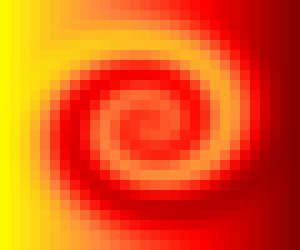
01 - Here, I have a background image that I'll use for this demonstration. All I've done to it is put a twirl effect on it, and then pixelated it (Effects > Geometric Effects on PSP7). |
ABOUT
Okay, so you're confused about what exactly a blend is? Hopefully, my little explanation will help. =)
You might notice that there are lots of pictures of one person on my challenge page - these are pictures that people will use (some of) to blend together, to make one image - a blend. I use Paintshop Pro 7...
|
01 - Here, I have a background image that I'll use for this demonstration. All I've done to it is put a twirl effect on it, and then pixelated it (Effects > Geometric Effects on PSP7). |
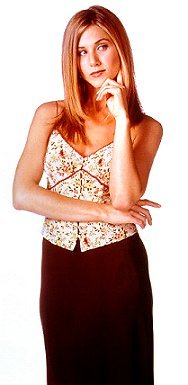 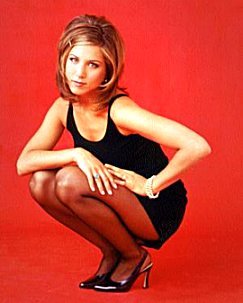 |
02 - And here I have 2 pictures of the beautiful Jennifer Aniston (resized for convenience). I'm going to blend both of these pictures onto the background image above. |
 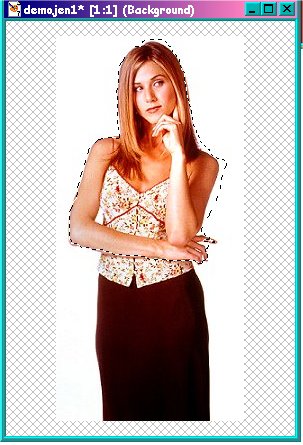 |
03 - I start by taking the first photo, and selecting the part that I want to use, with the freehand tool. |
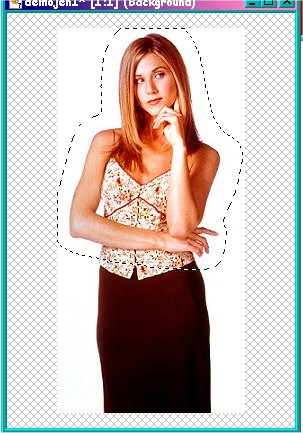 |
04 - Then I feather it by 15 pixels. (Selections > Modify > Feather) |
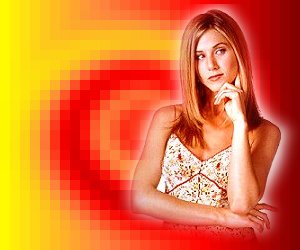 |
05 - Now, I paste the selected image as a new layer onto my background. (Ctrl + C - on Jen image, Ctrl + L - on background image -- on PSP7) and it looks like the pic to the left... |
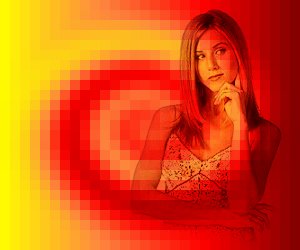 |
06 - Then, for a simple effect, I go to Layers > Properties and choose a 'Blend mode'... in this pic, I'm using Multiply, but there are loads you can choose from. |
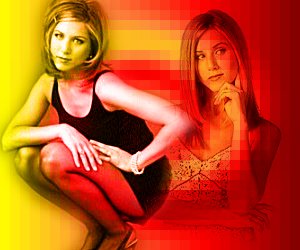 |
07 - Now I'm repeating steps 3 - 5 with the second Jennifer pic, and putting another Blend mode onto this layer. This time, it's Luminance. And now we have a blend! =) I usually use effects and add text.. |
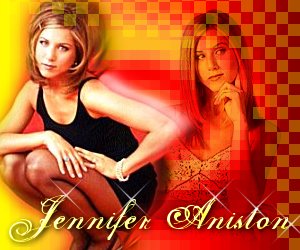 |
And this
is my finished product! =D First, I put a motion blur (Effects
> Blur > Motion Blur) on the second picture (layer),
and added the same picture over it, with no blend mode on
it. Then I wrote 'Jennifer Aniston', using the text tool  with font 'Selfish'.. effects I
used on the text: Effects > 3D Effects > Cutout,
and Effects > 3D Effects > Drop shadow. Then,
because I've downloaded brushes for the brush tool with font 'Selfish'.. effects I
used on the text: Effects > 3D Effects > Cutout,
and Effects > 3D Effects > Drop shadow. Then,
because I've downloaded brushes for the brush tool  , I used one in the top right hand
corner of the blend, and repeated it. The little shiny
bits on the writing is also a brush - it comes with PSP7. , I used one in the top right hand
corner of the blend, and repeated it. The little shiny
bits on the writing is also a brush - it comes with PSP7. |
Any questions or comments? E-mail me! =D