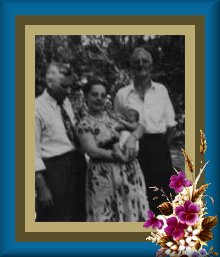
Simple Frame
1. Open Image (the picture you want to frame)
2. Resize if necessary. Image -> Resize (4generation picture is 150 x 187).
3. On the color pallet Make the background color light gold -Red-187 Green-170 Blue-114 Make the foreground color dark gold -Red-89 Green-79 Blue-43 NOTE: You can use any colors you want, these are just the ones I used. Go to Image -> Add Border -> Symmetric checked - Top, bottom, left and right = 10. Click ok. Note: Play around with numbers here.
4. Click 2-way arrow by color pallet to switch colors. Dark gold is now background and light gold is now foreground. Click Image -> Add Border -> Symmetric check - Top, bottom, left and right = 10. Click ok.
5. Change background color to dark blue. Red-4 Green-100 Blue-150 Click Image -> Add Border -> Symmetric check, Top, bottom, left and right = 15. Click ok.
6. Click picture tube icon on the toolbar, it looks like a small
inkwell.
Find the tube of the picture you want on the Control
Panel.
Set the scale to about 50%.
Click on your picture in the lower right-hand corner.
When you have it where you want it, it
might take a couple times to get it where you want it. If it's in
the wrong place, click Edit -> Undo or ctrl=z and try it again. (I
use the Undo button ALOT!) Then go to
7. Image -> Effects -> Buttonize.
Set height to 9, width to 14, opacity to 51.
Make sure Transparent Edge is checked.
click ok.
Click Undo and play around with the number until you get what you
like.
If you want to save it go to File -> Save As -> then pick where you want to save it (I save to my cd-rom drive or floppy A). Name your picture and don't forget to Specify JPEG of GIF.