Once the correct login information is provided, you will be taken to a page that looks something like this:
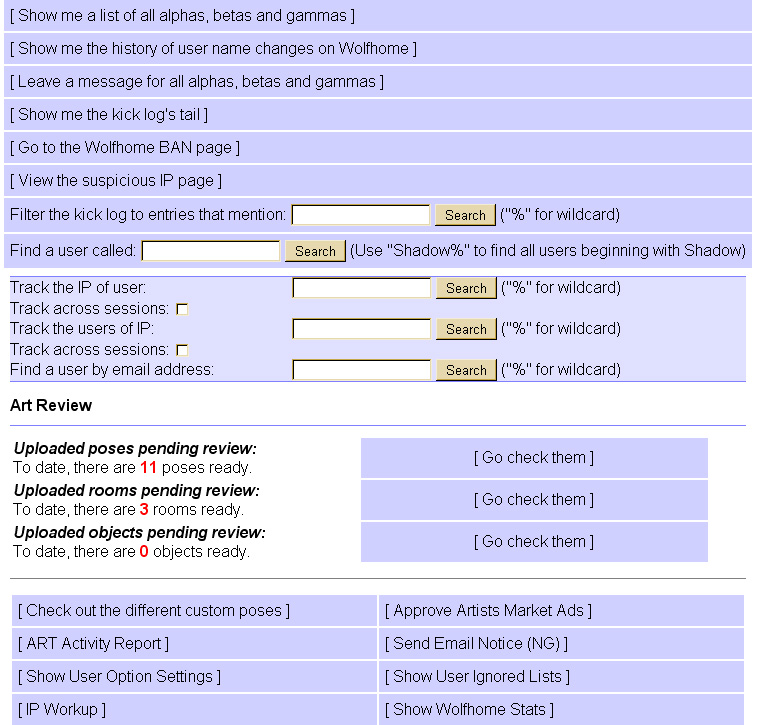
As you can see, there are many tools available to Betas, gammas do not have as many, and alphas have much more! Regardless, the main focus for now is the center area, below "Art Review." Here you can see how many poses, rooms, and room objects wait to be reviewed by ART. To begin to view the poses that need to be review, click the " [Go check them]" to be taken to the poses.
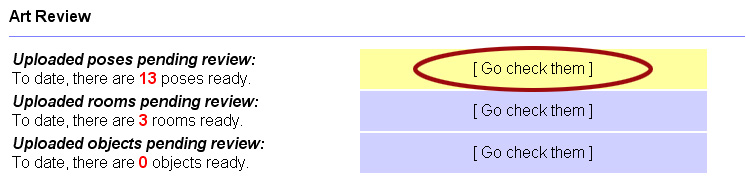
Now you will be in the pose reviewer. Depending on the day, and who's been on, there may be as much as a couple hundred poses, to as little as none. It's ideal to keep the number low, as reviewing is a little less overwhelming that way, but sometimes is not always possible (due to training, influx of pose submissions, staff availablity, etc etc). This does not mean you have to review all the poses. You can review as many as you like. Any poses that get reviewed will help keep the count low, plus frequent visits. Besides, this is a team effort, and should not rely on one team member to do all the work!
Upon entering the pose reviewer, you will see poses unfiltered by name, but rather by the date they were submitted. Oldest poses will be displayed first to ensure that a pose is not forgotten, and the newest poses are last. You can filter it by name, which can be easier to review and catch things. In time, you will find which was works best for you. Here are the filters in the pose reviewer:

If you wish to review by date, there is nothing you need to do unless the filter setting was changed and you need to revert back to the sort by date filter. To get to the next page when using the date filter, click either the Previous or Next links on the bottom of the filter to display the next page. If you wish to filter by name, click the "sort by name" link in blue on the left. This will arange the poses to be listed according to the username. This way you can see all the poses that user has uploaded. It's likely that when submitting poses, they will have poses (like premades) from the same person or area and may not always include a link on each pose. Or they may have several poses that are stolen. This allows you to deal with each person at a time.
If you have selected the "sort by name" filter, this is now what your filter bar should look like:

This allows you to jump to users names with a name begining with a certain letter. There is no need to worry about finding where to start, as it will begin with the first availble name, irregardless of the beiging letter or number. As the first availble name may start with a B and not an A, you do not need to click B to begin reviewing, it will automatically start there. Once you've started reviewing, sometimes there are alot of users under a given letter. At the top left of the screen, you can refine the search more if you are trying to find a certain name, or skip one.
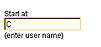 |
Simply type in the name, or first few letters to skip to or after a name. This can be very helpfull when an individual users has several poses that may take more then one page. |
You will also notice there are yet still other filters availble. This is the species filter. As WolfHome now allows other species (in private rooms only), it may sometimes be the reviewers choice to only deal with certain species. This is where you can select the filter, either: WolfHome only (first dot), Other (all other species available, second dot), or both (last dot). However, this only filters what is correctly labeled. Users do not always lable their species correctly or forget to. This is part of an ART's job, is to ensure that each pose is correctly labled under the appropriaite species. As noted in the previous screen shots, the default setting is both.
Now, for this test run, we will sort by name, and leave the default species filter on default (both). Here we will start at letter C, by selecting the letter from the filter. Here is what (or something similar) you will see:
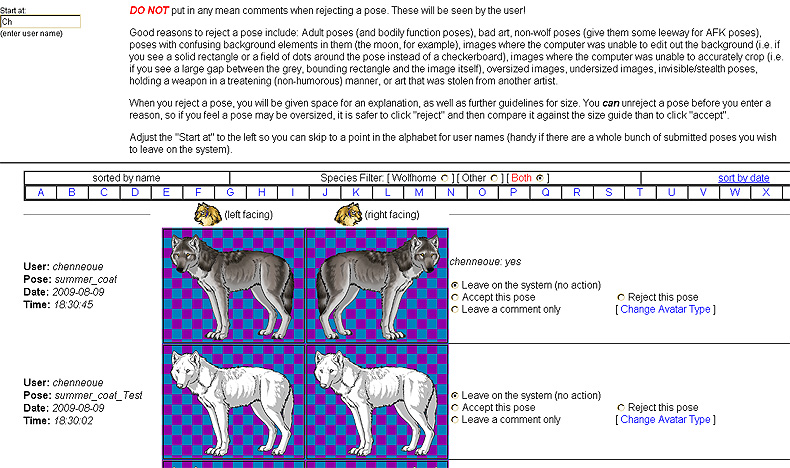
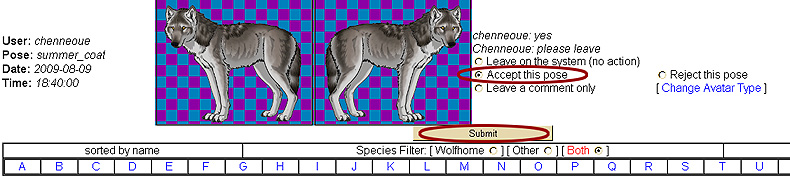
For the letter C, the first name that pops up is Chenneoue. You can see they have uploaded several poses. When reviewing poses, there are several things you need to look at. The order doesn't much matter, so long as everything checks out. For example, to start, we can look at the pose itself. Check to make sure the pose meets the WolfHome standards; correct pose size, any loose pixel(s), distortion (this maybe affected by your browser as well! so be carefull), clear light source, and enough shading for example. If the pose looks good, now (or before if you prefer) is a good idea to check any notes or comments left by the user.
Comments can be very helpfull, or extremly irritating. In the first pose in the above image, you can see Chenneoue has uploaded a pose called "summer_coat." The pose is, according to the standards approvable. But the comment left leaves ART frustrated as there is no real information provided. They are simple replying "yes" to the statement made in the comment box of the pose uploader, which is to say yes they have permission to use the pose. But this proves little. In this case the pose is a freebie, and in fact by Chenneoue. So the pose is still acceptable. Though for someone unfamiliar with the pose, they would not know this. A Comment NG, or Information Request NG may need to be sent. More on that here.
Since this pose is acceptable, both by standards and permission, we can now accept the pose. To do this, click the "Accept this pose" dot, and scroll down to "Submit." You do not have to do one at a time, you can accept, reject, and comment on many poses at one time.
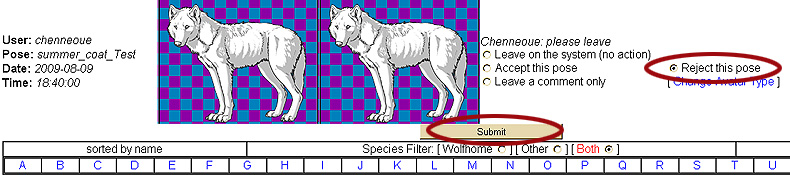
Now for the next pose, called "summer_coat_Test." This pose is not acceptable. Though they have permission to use the pose, the pose is not up to wolfhome standards, as the pose is not "flipped" (has both right and left facing version). To reject a pose, you need to click the "reject this pose" dot and click submit.
For rejecting poses or leaving comments, you will be taken to a new page once you click submit. Here, you will select a rejection reason from the drop down selection and/or insert reasons in the field below the pose. Be aware, that these comments will be seen by the user! Please be mindfull with comments, while making sure to throughly explain why the pose is being rejected.
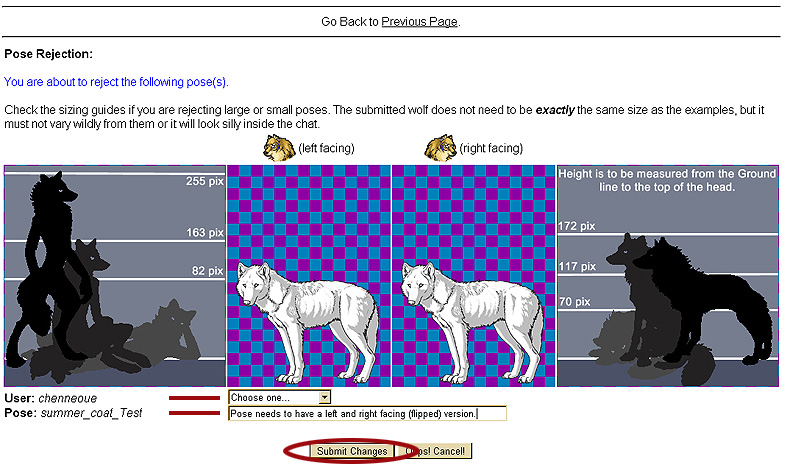
While in this area of the reviewer. If you notice that you made a mistake in selecting a pose for rejection, or leaving a comment, you can hit "Oops Cancel!" button to go back to the main reviewing area. Once submit is clicked, the pose will be rejected (or commented on) and cannot be undone.
For leaving comments, it will look very much the same as the rejections area. To be rejected poses and comments will be displayed on the same page, but the to-be rejected poses will be listed first on the new page. The difference between these options are that to-be rejected are going back to the users, comments are for ART members only, and that pose stays in the reviewer. This does not mean it's a good idea to leave harsh comments on the pose or user. This option is to allow ART members to discuss issues, uncertainties, other causes of concern, and or add information on the pose for others to see. This area can also be used to reference our size charts in case you are uncertain about sizing. If you are unsure about something, leave a comment!
Now that both poses have been dealt with, you can move on to more poses! When you are done reviewing poses, please make sure to use the link at the very top left of the page ("[ Back to Admin Menu ]"). This will unlock the reviewer for the next ART member. Do not use the back button to get out! This does not unlock the page!
Last updated: August 2009