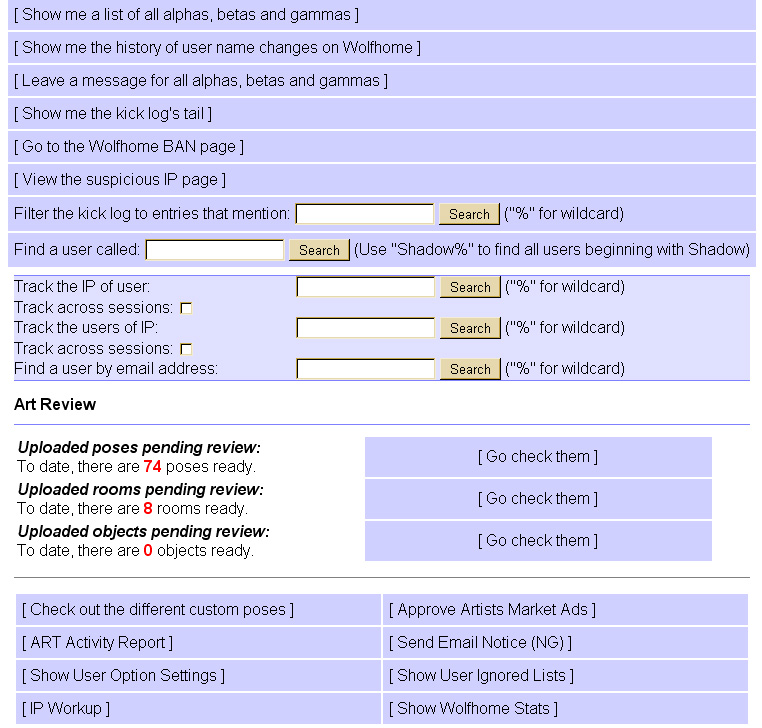
To start this tutorial, you will need to able to log into the Beta page, for WolfHome admins. You will be promoted for your user name and pasword. Once you have logged in, the page should look something like this:
Please remember, this area of the site is for admin only, and not to be viewed by non-admin members. Never give out your user name or password out, or allow another member to use your account, especially admin accounts! You are responsible for your account.
This part of the tutorial is strickly to get you familiar with the tools available. To use the tools, you will need to see the tutorial(s) designed for that area. We will begin at the top of the page and work our way down. At the very top of the page, it will desplay the user name that is logged into the page, this has been cropped out here, since it desplays the name and IP address.
The first tools available to you are ones all admins have access too. The first one being a list of the admins. This gives you the list of names, their e-mail address', and other account information. The second tool is the account history of name changes. This is where you would track the names changes of an account. However, this does not track people's accounts that were not once the same.
Such as user A closes an account, then opens account B. This tool will not show you the new account name, an IP work-up would be the best way to determine this. Thought if user A changes their account name from "A" to "C", then this tool would log the change. This is handy for tracking past offenses.
The third tool is a message system. This is where a message can be left for all admins to see. Next is the kick log history. This logs all kicks from admins and users alike, in order of how they happened. This log however gets cleared daily, so it is a good idea to take a peak from time to time. Mainly to make sure that users are not abusing their privillage to use kick option in their private rooms. Obscene, vulgar, or serious threats are not allowed as kick reasons.
The fifth tool is something all admins will regularly use. This is the ban tool. You can use this while in chat, or checking the forums. This is where you can place, up, or lower a ban on a user. Below this tool is the suspicious IP page. Next is a filter tool for kick reasons. This is another way to keep track of admin and user's kick logs. The final filter for this first section is where you can search for a user name. This tool will pull up the users account information; username, e-mails, account type, etc.
In the section section of the admin tools is where most of an IP work-up is done. The first box is to search by user name, the second by IP address, and lastly be e-mail account. Next is where the ART tools begin.
The first three are the reviewers: pose, room, and object reviewers. These are where uploaded images are sent to be reviewed by ART members. After the reviewers are other tools, these may vary between admins because of rank, department, etc. In this example (as it is for an ART member), the first tool (going from left to right, top to bottom) is checking out the custom poses. This is where you can search for a user's pose list. There you can review already accepted poses, revoke, and edit poses. You can also leave comments on a user's pose list.
Next is approve artist market ads. This link takes you to a different page where again, you will need to log in. This is where you approve, reject, and can moderate market ads uploaded by users. The next tool is ART activity report. This is a log of recent activity of ART members in the various reviewers. There you can see who has logged into which reciewers and when. You can also filter by name.
The next tool is one often used by ART and the communications team. This is what you would use to send a NG (nasty gram) to a user. The following tool is an account options settings. This will show you what settings a user has set on their acount, such as pop ups, show gender, off duty, and etc. The user ignore list, the next tool, allows you to view a user's ignore list.
The following tool is another IP work-up tool. This is a recent updated version, that still may have a few bugs. This version of the IP work-up is more refined and easier to work with. And finally, the WolfHome Status tool. This tracks the number of users that are logged into the site. This is a great way to track peak times of the day, and see how many admins average on the site. The log is updated every five minutes.
And those are the basic ART admin tools available for a Beta. As mentioned before, there may be some variable depending on rank and duties. If there tools here that are not listed, that maybe because of a higher rank, or extra duty that has been assigned to you. If you do not see all these options, that maybe because of a newer status, lower rank, or less duties that are assigned to you. If you have questions about your tools, please ask your training buddy!
Last updated: August 2009