|
|
| Types of Memory
There are several different technologies available today when it comes to memory. No longer can you just buy a SIMM and stick it in. There are many types available. Let's discuss them here. ROM : This is read-only memory, memory that can only be read, but cannot be written to. ROM is used in situations where the data must be held permanently. This is due to the fact that it is non-volatile memory. This means the data is "hard-wired" into the ROM chip. You can store the chip forever and the data will always be there. Besides, the data is very secure. The BIOS is stored on ROM because the user cannot disrupt the information. |
There are different types of ROM, too:
Like ROM, there are different types of RAM:
There are a
two types of SRAM: 2. Pipeline Burst SRAM
: Commonly used. SRAM requests are pipelined, meaning
larger packets of data re sent to the memory at once, and acted
There are several types of DRAM, complicating the memory scene even more: 1. Fast Page Mode DRAM (FPM
DRAM). FPM DRAM is only slightly faster than regular DRAM. Before
there was EDO RAM, FPM
3. Burst
EDO DRAM (BEDO DRAM) : Original EDO RAM was too slow for the newer
systems coming out at the time. Therefore, a new 5. RAMBus DRAM
(RDRAM) : This is a technology still being developed by Intel that
may prove to surpass SDRAM. Its goal is to get rid |
|
More on PC-100 SDRAM |
|
Enter PC100 : Basically, PC100 is SDRAM, which meets a certain specification to work with stability at 100MHz. This SDRAM usually operates at 10ns, although some is created that is faster. Since the only qualification for PC100 is the ability to operate at 100MHz, there is no rule as to the access time. 10ns is the minimum speed for stability at 100MHz. some companies advertise PC100 faster than this, say 6ns, but, a lot of times you will find this to be inaccurate. All PC100 is not equal. While it all operates at 100MHz, when you get into higher bus speeds than that, the high-quality stuff starts to stand out. The reason is that the latency rating of the higher quality stuff is lower. The latency is a measurement of how long it takes for other hardware to return data to the RAM. The lower the latency rating, the better the chip, and the faster it will operate. The most common, and cheaper, type of SDRAM chip uses GL or G8 chips. The "GL" or "G8" will be seen on the actual SDRAM chips on the memory circuit board, so you will know what you're looking at. The GL's use a CAS latency of 3, which is pretty standard. The better stuff uses "GH" chips, which uses a CAS latency of 2. To operate at 100MHz or 112MHz bus speeds, almost any of this PC100 will work. But, bump it up to 133MHz, and you'll need to get the better GH SDRAM with a CAS latency of 2.
Only with this will you get stable operation at such high front side bus speeds.
Along with high quality PC100, one must take notice of the printed circuit board on
which the chips are mounted. The quality of these boards, for the most part, is measured in the
amount of layers. You can equate this to thickness. Obviously, the thicker the material of
the board, the less chance you have of damaging it, the longer it will last, and the less
electrical noise you will get. So, the more layers the better. Run-of-the-mill, cheap SDRAM
often used good quality chips, but the manufacturer would cut corners by using lower quality
PCB�s (Printed Circuit Boards). Often they would use 4-layer PCB's. Well, part of the PC100 So, if you find yourself buying a Super 7 or BX motherboard, you should pick up some PC100 SDRAM with it. The older stuff will work, but, without PC100, you are stuck with your new board's slower bus speeds. SDRAM Considerations
As mentioned before, SDRAM is the new developing standard. But, in buying SDRAM for you
system, there is some information you must consider.
SDRAM chips are generally named in two different ways. The most common way is the
nano second rating. It is said to have a "10 nano second" rating, which is the common speed
for SDRAM. The second method is the MHz rating, like "100 Mhz". SDRAM is synchronous, meaning it is tied into the bus speed of the system. This means that
the memory must be fast enough to work on the system you intend to put it on. Unlike older
memory that used wait states to compensate for slowness, SDRAM does not use wait
states. The memory, then, must be fast enough for the system, taking slack into account.
It is really this reason why SDRAM was created in the first place: to make memory that
could keep up with the system. But, for most systems, EDO RAM does just fine. At the
standard 66MHz speed, EDO is a dream, as that is what it was really designed for. But, it
was soon found that EDO RAM worked just fine at even higher speeds, such as 75MHz or
83MHz. Some people can get it up to 100MHz, although this is pretty flaky from what I
hear. SDRAM was designed mainly to operate with stability at bus speeds such as 100MHz.
The problem with this is that, until recently, we really had very few motherboards that
could make it to 100MHz. Therefore, how are we to know that that expensive SDRAM will
really do it?
2-clock vs. 4-Clock :
Two types of SDRAM's are the 2-clock and the 4-clock. Structurally, they are the same, but
they are accessed differently. A 2-clock SDRAM module is set up so that each clock cycle
accesses two chips on the module. A 4-clock SDRAM setup accesses 4 chips per clock cycle.
To choose what kind to get, you must look into the motherboard's documentation. 4-clock
modules seem to be the popular choice.
Serial Presence Detect Serial Presence Detect : Some SDRAM modules have a special EEPROM chip on it that holds information about the SDRAM module, such as speed settings. The motherboard then queries this chip for info and makes changes in the settings to work with the SDRAM. Basically, this allows the SDRAM module and the chipset to communicate, making the SDRAM more reliable on a larger number of motherboards. Some motherboards require this feature. You will have to look at the manual, once again. If your board requires it, make sure you have it, because SDRAM without this won't work.
When choosing SDRAM for your computer, you need to know your motherboard and get
exactly the type it requires. |
|
Memory
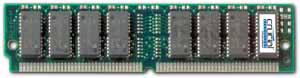
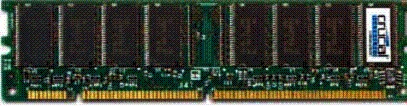
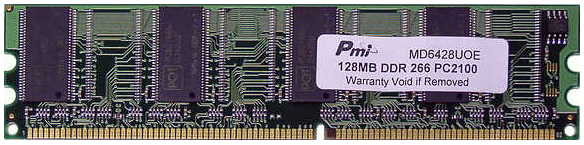
Module Identification |
|
These
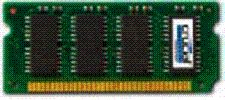
are examples of the most common types of memory 72
PIN SODIMM approx.
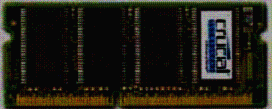
2.375� x 1� 144
PIN SODIMM approx.
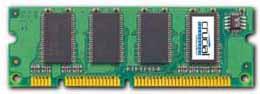
2.625� x 1� 100
PIN DIMM approx.
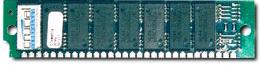
3.5� x 1.25� 30
PIN SIMM approx.
3.5� x .75� 72
PIN SIMM approx.
4.25� x 1� 168
PIN DIMM approx.
5.375� x 1� 72
PIN SIMMs and 168 PIN DIMMs were used in most 184
PIN DIMM approx.
5.375� x 1� 184 PIN DIMMs are used in most
|
|
Installing
RAM |
|
First there are some things you need to watch out for when getting RAM. Buy
memory that fits into the sockets on your motherboard. You'll know what
kind it is because of the length of the socket. Get memory that is
the right speed for your computer so that it can use the memory without
tripping. Look on the SIMM. Somewhere, it should say how fast it is.
Look for a number after a dash, like "-100" or
"-70". This is the speed in nanoseconds. Consult your
motherboard's manual to see what kinds of memory it can handle. In
general, you don't want to get memory that is any slower than the memory
currently on your computer. Make sure you don't exceed the amount
of memory your motherboard can handle. Different boards have different
limits. Again...consult your board's manual for thisinfo. Also pay
attention to chipset limitations, such as the TX's 64MB cacheable memory
limit. Now I'll give you instructions to put it in. The actual
installation is as easy as could be. The problem usually comes from not
finding compatible memory, but even this is not a huge problem. 1)
Turn off the computer, unplug it, and take off the case cover. 2)
Get your memory. Here is where you make sure the above guidelines
are met. 3)
Install the RAM. First some info, though. Your computer organizes
its SIMM sockets into groups called banks. Some boards say that
two sockets make a bank. Some say that one is a bank. Nevertheless, a
bank must be full. A half full bank will drive your computer nuts. Also,
you can't mix two different kinds of memory in a single bank. For
example, you can't put a 4MB SIMM and an 8MB SIMM in one bank and expect
to get 12 MB of RAM. Also, many systems require you to put the memory in
pairs. Therefore, if you want 32 megs of RAM, you have to stick 2 16's
in instead of one 32. Here's a shortcut which is almost always true. An
older computer with a 386 or an early 486 chip usually has a 4 socket
bank of 30-pin SIMM modules. A later model 486 requires only one socket
of 72-pin modules. Pentium machines have two socket banks of 72 pin
modules, meaning you must install RAM in pairs. In all of these systems,
the bank must be full for your system to operate. Following these
guidelines, lets say you want to add 16MB of RAM to your Pentium
machine. You could buy one 16MB SIMM, but this won't work because you
will have a partially filled bank. You must buy two 8MB SIMMS instead,
and install them in a pair. Many newer motherboards have the 168-pin
slots for SDRAM. Each SDRAM slot is a bank, so one SDRAM chip will work
fine. Other motherboards have both SIMM and DIMM slots. Usually,
each DIMM slot is a bank, just like normal. The SIMM slots right next to
them are usually paired in a bank, just like the normal Pentium bank
setup. Now that that is out of the way, lets install the RAM. First,
ground yourself. Then pick up the SIMM and look for the notched end.
That notch will only let the thing go in one way, so if it goes in,
it�s right. Push the SIMM down into the socket. Tilt the SIMM slowly
until the little spring snaps into place and holds it in. With DIMM
chips, the setup is slightly different. There are little levers that
hold the DIMM in place. When installing, you open the levers. They flip
to the side. You then push the DIMM in place. The notch is off-center,
so it will only allow the chip in the right way. Once it is in all the
way, close the levers. 4) Consult the manual for any jumpers or DIP switches you need to mess with. Flip the ones you need to flip. Most boards do not have such jumpers, but this step is included for those of you that do have such hardware. 5)
Turn the system on. Your computer should either greet you with an
error message or just boot up normally. If it boots normally, just watch
it count up the memory to see if it counts the new memory. If you get an
error message, your computer has found the memory and wants you to
confirm that you did indeed put more in it. This all happens in the CMOS.
Every setup program is a little different. If your machine doesn't seem
to be working at all, go over the checklist and make sure you put the
right kind of memory in. 6) You're done!
|
|
Memory
Problems |
| There are a lot of problems out there to be had with memory. That's why it isn't too fun.
Most of the time, these errors can be traced simply to faulty SIMMs or
DIMMs. Nevertheless, let's look at some common memory errors, just so you know and you can
impress your friends.
Two very common memory errors are: "NMI error at [address]" or "Memory parity interrupt at [address]". If you have Phoenix BIOS, it goes on : "Type (S)hut off NMI, (R)eboot,(I)gnore". An NMI is a nonmaskable interrupt. This means that your computer isn't allowed to mask this one while finishing another task. When an NMI occurs, you'll know. The whole computer will lock up and will stay dead until you fix the problem. Most PC's reserve a little chunk of memory so that it can test the rest of the memory. Almost all modern computers use non-parity memory. These computers will not generate an NMI if it finds only one bit or so bad during the test. With these non-parity computers, then, you may get a few random errors in your work due to these bad bits that the memory test hides. It�s not a major problem. So, what causes this parity error? Most likely you have a bad RAM chip. Either that, or the voltage to the memory dropped and your computer forgot everything. These two possibilities are most likely. Otherwise, (1) you have bad address logic to the memory chips, making the computer confuse one chip for another, or (2) a bad chip that reports a problem but is just joking with you because there is none. These last two usually result in getting
another motherboard, because the chips that are complaining are irreplaceable alone.
To find error sources, though, usually requires a software memory test. There are several
out there. Hopefully these programs can point out the bad chip so you can just replace it. If
you're lucky, the SIMM just slipped out of the socket somehow. |
Copyright � 2003, All Rights Reserved. Mobile : +91(0) 9811328969, @mail :- [email protected] |