Understanding
System Memory and CPU speeds: A layman's guide to the Front Side Bus (FSB)
- Introduction
- What's a
bus?
- The System
Clock
- Double
Pumping, Quad Pumping, and DDR
- The System
Clock, the Front Side Bus, and Overclocking
- Summary
and Conclusion
- Additional
Info and Updates
Introduction
Shopping for a new processor and motherboard can
be confusing. Some of the most important terms and concepts regarding
system performance are also the hardest to understand. Terms like: System
Clock, Quad Pumping, Double Pumping, DDR, FSB, SDRAM, Dual Channel, and QDR
make many new builders cringe. In this article I will walk you through some
of these important concepts so that you can make a more informed decision
when upgrading your current system or building a new one.
| Go to Top |
Part
One: What's a bus
To get anything done with a computer you have to
get the information you input to the CPU and then to any attached devices
such as cards, displays, and other output devices. Inside the computer
itself, this information travels in the form of signals over what is known
as a bus. You can think of a bus as a road and the signals as cars. A wide
road (bus) can support more cars (signals), and a smaller road (bus)
supports less. The cars (signals) on the road (bus) have a speed limit (the
bus speed). Although a speed limit can be broken (an overclocked bus) doing
so can have adverse effects on the cars (signals).
Going along with this analogy: A computer is like a small city. You do not
have just one road, but instead you have several different roads with
different names and speeds.
There are three main buses in most computers:
 1) PCI Bus- The PCI bus
connects your expansion cards and drives to your processor and other sub
systems. On most systems the bus speed of the PCI bus is 33MHz. If you go higher
than that, then cards, drives, and other devices can have problems. The
exception to this is found in servers. In some servers you have a special
64-bit (extra wide) 66MHz PCI slots that can accept special high-speed
cards. Think of this as a double sized passing lane on a major road that
allows higher cars to go through.. 1) PCI Bus- The PCI bus
connects your expansion cards and drives to your processor and other sub
systems. On most systems the bus speed of the PCI bus is 33MHz. If you go higher
than that, then cards, drives, and other devices can have problems. The
exception to this is found in servers. In some servers you have a special
64-bit (extra wide) 66MHz PCI slots that can accept special high-speed
cards. Think of this as a double sized passing lane on a major road that
allows higher cars to go through..
2) AGP Bus- The AGP bus connects your video card directly to your
memory and processor. It is very high speed compared to standard PCI and
has a standard speed of 66MHz. Only one device can be hooked to the AGP bus
as it only supports one video card so the speed is better compared to the
PCI bus, which has many devices on it at once.
3) Front Side Bus (FSB) - The Front Side Bus is the most
important bus to consider when you are talking about the performance of a
computer. The FSB connects the processor (CPU) in your computer to the
system memory. The faster the FSB is, the faster you can get data to your
processor. The faster you get data to the processor, the faster your
processor can do work on it. The speed of the front side bus depends on the
processor and motherboard chipset you are using as well as the system
clock. Read on for more information about the Front Side Bus later in this
article.
| Go to Top |
Part
Two: The System Clock
 The system clock is the
actual speed of your FSB with out any enhancements (such as double pumping,
or quad pumping) on it. The system clock is also sometimes just called the
bus speed. From the system clock your PCI bus speed is determined via the
use of a divider and then your AGP bus speed is determined by multiplying
the PCI bus speed by 2. The dividers allow you to have a faster speed on
your PCI and AGP bus while still allowing for the faster operation of the
main FSB. In most systems PCI dividers are set automatically and you can
not alter them, however, in newer motherboards geared towards computer
enthusiasts -- PCI dividers can sometimes be manually set in order to allow
you to raise the System clock higher then its normal rate. The three most
common dividers built in to motherboards are: 1/5 (used on a 166MHz system
clock), 1/4 (used on a 133MHz system clock), and 1/3 used on a 100MHz
system clock. A 1/6 divider is sometimes available for overclocking and
future support. The system clock is the
actual speed of your FSB with out any enhancements (such as double pumping,
or quad pumping) on it. The system clock is also sometimes just called the
bus speed. From the system clock your PCI bus speed is determined via the
use of a divider and then your AGP bus speed is determined by multiplying
the PCI bus speed by 2. The dividers allow you to have a faster speed on
your PCI and AGP bus while still allowing for the faster operation of the
main FSB. In most systems PCI dividers are set automatically and you can
not alter them, however, in newer motherboards geared towards computer
enthusiasts -- PCI dividers can sometimes be manually set in order to allow
you to raise the System clock higher then its normal rate. The three most
common dividers built in to motherboards are: 1/5 (used on a 166MHz system
clock), 1/4 (used on a 133MHz system clock), and 1/3 used on a 100MHz
system clock. A 1/6 divider is sometimes available for overclocking and
future support.
Example: If you have a 166MHz system clock and you set a 1/5 divider in
your motherboard's bios then your PCI bus speed would be 166/5 = ~33MHz and
your AGP bus speed would be ~33*2 = 66MHz.
Why Isn't My Processor the Right Speed?
An often-misunderstood property of the system clock is its effect on
processor speed. You see, a thing called a "CPU Multiplier"
determines the speed of a processor in MHz. If you take the multiplier of
the processor and multiply it by the system clock speed you get the speed
of your processor. Your CPU has its multiplier hard wired in to the chip,
and this *normally* cannot be changed. Your system clock is another matter.
It can be set on your motherboard by using BIOS or a set of switches on the
board itself. This is very important. Most motherboards do not
automatically set the system clock for you when you install a new
processor. We often get reports from new system builders saying that they
received the wrong speed processor when in actuality; the new builder
forgot to set the system clock to the right speed for their processor. For
a list of standard system clock speeds please see part IV of this article.
| Go to Top |
Part
Three: Double Pumping, Quad Pumping, and DDR
Earlier in this article I compared a bus to a
road, and the bus speed to a speed limit. This isn't entirely correct
because unlike a standard speed limit in real life you are not talking
about miles per hour or kilometers per hour, you are talking about MHz or
millions of clock cycles a second. A cycle is easily represented by a sine
wave.

A clock cycle is how long it takes to go from 1 to 0 (from the peek
of the wave to the bottom of it). So how does that affect your system?
Your processor and memory all can be affected by various enhancements to
speed. To understand this you first must look back at the old way of doing
things:
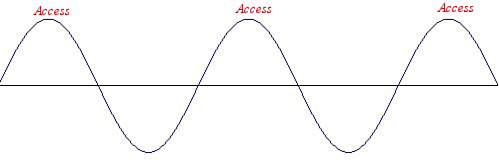
Traditional parts with out any enhancements can only send/receive a
signal once a cycle. A good example of this as far as memory is concerned
is standard SDRAM such as PC133. The traditional approach has been around
for a long time and it matched well to the un-enhanced buses like you find
on processors such as the Intel Pentium / II / III or AMD K6 series. For
these types of systems standard SDRAM made a lot of sense because the
memory and the processor both were able to transmit at the same time and
the bus speed could be synchronized.
Enter the Present - The Double Pumped bus w/DDR
As time progressed processor and memory manufacturers found ways of
improving the number of access times per cycle. With the release of the AMD
Athlon Processor the world saw the concept of a "Double Pumped
FSB". With a double pumped bus the processor could send and receive a
signal from the memory sub system twice a cycle. This was a great idea;
however this meant that standard SDRAM memory no longer lined up. Standard
SDRAM memory could only send/receive once a cycle. What was created is what
is known as a bottleneck -- or an obstacle to maximum performance. Removing
the bottleneck required a new and faster type of memory and the memory that
filled this gap was DDR memory or Double Data Rate memory.
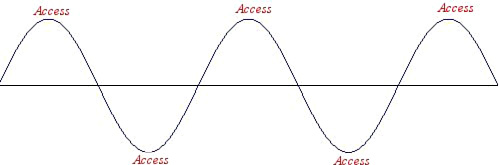
DDR memory can transmit twice a cycle just like the double pumped bus
on an Athlon processor, which means that using it with an Athlon processor
creates an optimized situation just like you had before with the
traditional system.
Quad Pumping, the P4, and Rambus Memory
When the Pentium 4 came out they introduced a new catch phrase to the
market: "Quad Pumped" (also known as QDR). The Pentium 4 FSB can
handle 4 signals a cycle. When the P4 was first released motherboards only
supported traditional SDRAM accessing once a cycle. As you can imagine,
such a combination of single access a cycle memory and a four access a
cycle processor gives you a massive bottleneck and greatly reduces the
potential performance of the processor. Intel was very quick to adopt the
fastest memory technology available: Rambus RIMM memory. Although Rambus
memory only accesses twice a cycle like DDR, Rambus memory comes in much
higher speeds than DDR. The base speed of the popular Rambus memory at the
time was a double pumped 400MHz (800MHz). Although the memory does not
handle 4 signals a cycle it does work very well since 400MHz is also the
enhanced speed of the standard P4 FSB (4 accesses a cycle x 100MHz). The
fact that the memory does two cycles for every cycle that the bus helps
makes up for the two signals a cycle difference. It is not as good as true
QDR would be but the technology is widely available unlike QDR memory.
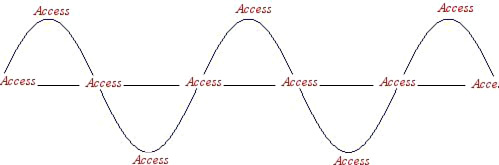
Dual channel Technology
Lets say you have a car that can hold 4 people but you've got 8 people to
transport across town. What do you do? Well you could take one load of
people across town, and then go back and get another load of people (a
standard memory system) or if money was no object you could simply buy
another car and have the other half of the people follow you across town in
the other car (a Dual channel memory bus). With dual channel technology you
use two memory modules at once to further enhance performance. This
essentially doubles the number of signals a second you can handle and
doubles your bandwidth (volume of information that can be transferred at
once). Point Blank: Dual channel technology increases memory performance
but it costs more money because you have to buy memory modules in pairs.
Dual channel technology also costs more because the motherboard has to
support it in the chipset and a chipset that supports dual channel
technology costs more due to the higher complexity of the memory bus.
Higher motherboard cost + higher memory cost = higher overall system cost.
Dual channel Rambus has been around for a long time but Dual Channel DDR
technology is just now hitting the scene in mass. Since DDR memory is
cheaper than Rambus memory and more widely available, Dual Channel DDR
should be a good option for the P4 processor but the problem is that as of
this writing no consumer level chipset supporting Dual Channel DDR exists
for the Pentium 4. (Dual channel DDR is widely available for the AMD Athlon
XP series of processors via the nforce2 chipset by nVidia,) When Dual
Channel DDR solutions emerge for the Pentium 4 they will quickly become the
best price vs performance ratio on the P4 side.
| Go to Top |
Part
IV: The System Clock, the Front Side Bus, and Overclocking
Now that you understand the performance
enhancements in the FSB of a processor it is important that you understand
how to figure out the processor multiplier and the proper system clock.
When you go to purchase a processor you are told in the ad / description
for the processor what FSB it has. To determine the proper system clock for
the processor simply divide the FSB by the performance enhancer (2 for the
double pumped bus on AMD Athlon XP/Thunderbird/Duron processors or 4 for
the quad pumped bus on the Intel Pentium 4).
If your processor has a ... FSB then the system clock speed should be:
66MHz (Various Celeron and older): 66MHz clock
100MHz (Pentium II / Pentium III / K6): 100MHz clock
133MHz (Pentium II / Pentium III / K6): 133MHz clock
200MHz (Athlon, Duron, Thunderbird): 100MHz clock
266MHz (Thunderbird, XP): 133MHz clock
333MHz (XP): 166MHz clock
400MHz (Pentium 4): 100MHz clock
400MHz (AMD XP): 200MHz clock
533MHz (Pentium 4): 133MHz clock
800MHz (Pentium 4): 200MHz clock
800MHz (AMD64): 200MHz clock
1066MHz (Pentium 4/LGA775): 266MHz clock
Now, remember what I said about the processor multiplier earlier in this
article? (Processor speed = processor multiplier x system clock)
If you do not know the multiplier for your processor simply take the proper
system clock speed for it and divide that into the rated processor speed
and then round the dividend to the nearest .5. Examples: The Pentium4
3.06GHz processor has a FSB of 533MHz. Its system clock is 533 / 4 = ~133.
The multiplier is 3,060 / 133 = ~23.
The AMD Athlon XP2700+ has a main clock speed of 2.17GHz and a FSB of
333MHz. Its system clock is 333 / 2 = ~166MHz. The multiplier is 2,170 /
166 = ~13
Underclocking and Overclocking
Underclocking or the act of running a processor or device at under its
rated speed is accomplished by simply running the device at a lower bus
speed (or if possible a lower multiplier). Most underclocking is done by
accident by new system builders. Most motherboards come defaulted to the
lowest system clock speed that the motherboard supports. Since the system
clock speed is usually not automatically set by the processor you put into
the board, this means that if you put a processor with a higher bus speed
than the lowest one the board supports, you are underclocking the
processor.
Example: Lets say I buy an AMD Athlon XP2400+ processor with a FSB of
266MHz. (XP2400 has a clock speed of ~2000MHz). If I do not set the system
clock to 133MHz then I get the processors multiplier (15) times the default
bus speed (100). This gives me the wrong processor speed (1500MHz) and the
motherboard will either tell me I have a 1,500MHz thunderbird processor, or
a XP1700+ processor. Changing the system clock in bios to 133 will make the
motherboard detect the processor properly and give me the right processor
speed.
Overclocking or the act of running a processor or
device higher then its rated speed is accomplished by increasing the system
clock (or if possible the multiplier). The biggest issue with overclocking
is keeping your PCI bus close to its speed limit (33MHz). Since a divider
of your system clock determines your PCI bus, you not only affect your
processor when you increase it, but also other parts of the system. Devices
attached to the PCI bus are much less over clocking friendly then either
memory or a CPU. When you overclock a processor using the system clock your
processor speed is determined in the same way as one would for finding
normal clock speed: processor multiplier x system clock = processor speed.
Example: An Athlon XP1800+ (1.53GHz) processor with a FSB of 266 and its
system clock overclocked to 145MHz would give you a speed of ~1.67GHz and
cause the board to detect the processor as a XP2000+.
| Go to Top |
Part
V: Summary and Conclusion
When you are choosing and installing components
in a system you should now know how to properly set the system clock in
order to achieve the full potential of the system. You should also now understand
more about matching memory with a processor. Go with a motherboard/system
that complements your CPU and provides it with memory support that well
matches the FSB potential. Slower memory technologies such as PC133 SDRAM
do not work well with current processors such as the Pentium 4 and Athlon
XP. Although synchronizing the memory speed and the FSB speed is best it is
OK to use memory that is faster then the FSB of your processor provided
that the motherboard supports it.
| Go to Top |
Updates
Since this guide was written a few new
technologies have emerged such as DDR2 memory and 64 bit processors for
Desktop. Here are a few additional pieces of information about these
technologies:
DDR2 Short and Sweet
There are a few major things you need to know
about DDR2 when building a system:
Basic Functionality: DDR2 memory has a different approach to design
at the chip level then DDR. The simplest way to understand how it works
would be to think that at the low level it had two chips of half the stated
memory speed working in tandem together to achieve the full speed stated.
So for DDR2 400 it would be something like 2 chips of DDR200 working
together to achieve the full 400 speed. Notice that I say "chips"
not sticks of memory. All this happens on 1 stick of memory.
The overall effect of this trickery is that manufacturers can scaled up the
speed of the memory beyond the limits of DDR, with only taking a small hit
to the timing of the memory ( how long it takes for the memory to respond
back to a request ).
This means that it's possible, and expected to see memory speeds of 533MHz
or higher for DDR2. In fact, the current concensus is that if you want to
build a system, and have a choice between a motherboard with DDR1 and DDR2
then to see a benefit to DDR2 you need to at least get one speed grade
higher than that of the max normal speed of DDR1. ( 400MHz ). This is
because the timings ( latency ) of DDR2 are worse than DDR. Essentially in
most situation DDR400 ( especially low latency DDR400) is faster than DDR2
400. However, when you get to DDR2 533 the speed boost makes up for the
slower timings.
As far as matching FSB to DDR2 speed my recommendations are to skip DDR2
400 and opt for going with the following:
800MHz FSB = DDR2 533MHz ( Ideal ) or DDR2 400MHz ( Matched but Slow. )
1066MHz FSB = DDR2 667 ( Good ) or DDR2 533MHz ( Matched )
Generally you want to keep the system clock of your memory matching with
the root clock of your memory or one step above. So the system clock on a
800MHz FSB P4 is 200 (quad pumped) so that matches DDR2 400 (essentially
200 unimproved) or is good with 1 step up DDR2 533MHz (essentially 266
unimproved). Note however that if you only had a 800MHz FSB processor then
DDR2 667 really probably isn't going to help much. Once you pass the 1 step
above mark on the memory you have diminishing returns unless you can get to
double (DDR2 800MHz).
Compatability: Generally a motherboard is only going to accept DDR1
or DDR2 not both. The slots are physically different and have a different
number of pins, however people have been known to force memory into the
wrong slots ( And that ends in horrible results! ). Be careful when
installing it and make sure the motherboard takes that kind of memory
before attempting.
At the time of this writing only motherboards for Pentium4 or Xeon accepted
DDR2. AMD Socket 754 and Socket 939 motherboards can't accept DDR2 due to
the integrated memory controller in the CPU. AMD is making a line of CPUs
that can work with DDR2. They will use new motherboards and have a new
socket called M2.
Additional Notes on DDR2: 1) DDR2 is not QDR like I mentioned
earlier, the technology is different. 2) DDR2 does give you definate
benefits and it is recommended. 3) At the time of this writing ALL
motherboards that used DDR2 were Dual Channel Ready. 4) It is not uncommon
to hear of problems from people trying to use 3 sticks of DDR2. This stems
somewhat from what I mentioned in #3. I recommend either using 1,2 or 4
sticks of DDR2. ( more is ok if you are doing a server but add them in
pairs, don't use a odd number of sticks if you can avoid it ).
A few notes on 64 bit
1) You
can use 32 bit operating systems with a 64 bit AMD CPU or EMT64 Enabled
Pentium 4/Xeon.
2) If you plan to run a 64 bit OS with your 64 bit processor, and are
actually going to use 64 bit applications ( not just 32 bit applications in
64 bit OS ) then it is recommended that you double the amount of memory you
think you need. So for example if you think you would be comfortable with
512mb of memory, use 1GB. If you wanted 1 GB use 2 GB. [Generally 2GB is
fine for most anything].
3) The most common issue with 64 bit CPUs and 64 bit operating systems is
that you need all new drivers for your hardware. Often the driver CDs that
come with hardware lack the 64 bit driver and you have to download new ones
from the web.
| Go to Top |
|