| Blinkie Tutorial |
|
This tutorial was written for Paint Shop Pro 7 and Animation Shop 3. I've assumed you have some knowledge of Paint Shop Pro though I tried to be through with most steps. You can download a trial version of Paint Shop Pro at Jasc. Be sure to save your file often as you work thru the steps. There's nothing worse then having a program quit on you and you loose everything. I have included a lot of screen shots. If you are all set, then let us begin. This tutorial takes you through making this lovely blinkie, personalized with your name, an award for completing my tutorial.
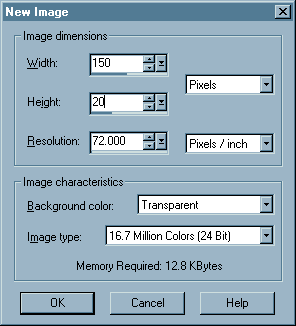
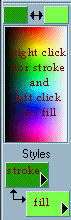
1. File > New > a palette like this will pop up - copy the settings I have here. 150 width, height 20, resolution 72, transparent background, 16.7 million colors. Press OK. 2. Select colors you'd like to use in your blinkie. You will need six colors. I've chosen to use HTML code #009900, #CCFF99 *I've put a black background on this for contrast*, #0066CC , #0099FF , #660066, and #FF0000. You can choose your colors by clicking here at a list of web safe colors, complete with HTML codes. Or you can just click on the box to the left of your screen - see diagram below. You can do this by left or right clicking. Or if you click larger squares it will give you the diagram on the right.
3. Once you have selected your colors we are ready to begin coloring our blinkie. Have the color you'd like to use as your main background color selected as your fill color. Like this ... #CCFF99 is the stroke and #660066 as the fill.
4.
Using the flood fill icon
5.
Click on the paintbrush icon
6. You now need to change the #CCFF99 color to the next color you've chosen to 'blink' with. I'll be using #0066CC your palette should now look like this.
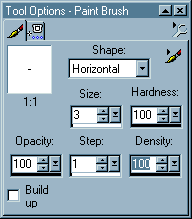
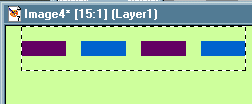
7. Go to your image and starting in a corner - I've chosen to start in the left hand upper corner. Click the paintbrush using the right click in the following fashion. Alternating between left and right clicking to get the following effect. - I've really zoomed in so you can see -
8. Once you get a few done you can marquee around the image like so.
9. Then you can copy it (Ctrl C) and then paste it as anew selection (Crtl E) moving the new image - to the correct new location, when you release it to it's new position you will see marching ants around the image you just placed there. Deselect by right clicking the mouse. Repeat the process until you have finished the top.
10. Once you get the top done, you can then copy the entire top of the blinkie and paste it as a new selection to complete the bottom part. Be sure to right click to deselect after finished placing it.
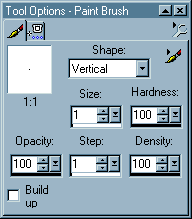
11. We are now ready to do the side blinks. Use the same paintbrush settings as before, except change to vertical brush, and decrease size to 1.
12. Using the same
colors as before -
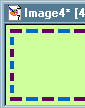
13. Make a marquee around this side of the blinkie and head to the other side, to finish it off. Your blinkie should now look like this.
15. Next using your
magic wand tool
16. Selections > Modify > Select Similar. This will select all things purple on that image. You'll see little marching ants go round them all. Selections > Save to Disk * this step will allow you to load this selection for future use - ie : future blinkies and for re-coloring of this blinkie. * You'll need to save it to your hard drive and give it a name, something you'll remember it by. I named mine blink1.sel. Choose what works best for you. 17. Now do the same to the blue color, or which ever color is your other blinking color. Save this as another name, I choose blink2.sel. 18. Now we are ready
to add some text. Using the text icon
19. Push OK and move
your mouse over the text, until you see this
20. Repeat the same process, only this time have it say "for finishing Blinkie Tutorial #1. Also change the kerning to be zero. and font to 6. Your blinkie should now look like this. 21. The next step would be to add an image to your blinkie, but I didn't include one in this tutorial. For a tutorial on adding images click here. 22. Now we need to
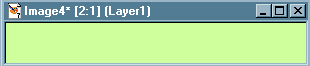
make this image blink. Edit > Copy> Edit > Paste as New Image. 23. Selections > Load from Disk > Blink1.sel (or whatever you called your first selection. 24. You should see the marching ants around one of your blink colors. Change the colors to be like this - or whatever you choose for a seccond group of blinks. #0099FF as the stroke and as the #FF0000 fill.
25. Now select your
paintbrush tool.
26. Be sure both images are saved. I usually use a generic name like 1.gif and a2.gif so they are at the top of my list when I look for them. I also usually save them to my desktop or a folder on my desktop for easy cleanup. 27. Run Animation
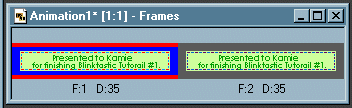
Shop 3. When opened click on the animation button. The next window asks what color you want the background to be, say transparent here. You don't want your image to have a background color. Though it won't matter much unless you have areas on your image that are open, it's safer to go with transparent. Click next. The next frame asks about how to treat the frame, I always select -centered and canvas color. Click next. This frame - click repeat indefinitely - unless you want your blinkie to blink only for a number of times on your site. Then select the # of times. This is 1/100th of a second. The lower the # the faster the image will blink. I like to use somewhere between 30 and 45 for mine. I will use 35 for this one. Click next. This frame, click add image, and find where you saved your image on your hard drive * for this blinkie the order doesn't matter but be sure to arrange them in the order they'd need to be if you are saying words in your blinkie. Click next, and then finished. 28. You should now see an image like this on your screen.
29. View > Animation. You will now see how your blinkie has turned out. File>Save As - this is done to the blinkie you see blinking. A dialog will pop up just keep pressing finish to get past it - it is optimizing your blinkie. Congrats your new blinkie should look like this.
30. Quit all applications or make more blinkies. There is no real reason to save the images that make up your blinkie. You have saved the selections for future use, so go ahead and say no when prompted to save the image1 and image2. Please link back to me if you have used my tutorial to make a blinkie. Just one link on your page would be lovely.
|










 click on either the blue or purple blink colors. I've chosen to go with
purple first. your screen should look similar t this after you click the
color.
click on either the blue or purple blink colors. I've chosen to go with
purple first. your screen should look similar t this after you click the
color. 
 click on your image anywhere. It doesn't matter because you'll need to
move your text later on. Apply the following signs to the popup dialog
box.
click on your image anywhere. It doesn't matter because you'll need to
move your text later on. Apply the following signs to the popup dialog
box.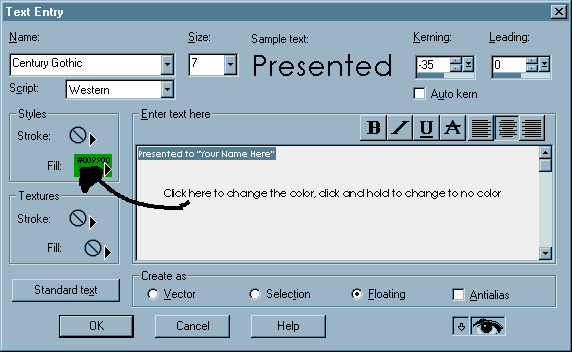
 icon when you see that move your text around to where ever you like it
to be placed. When you are happy with it's location - right click to
deselect.
icon when you see that move your text around to where ever you like it
to be placed. When you are happy with it's location - right click to
deselect.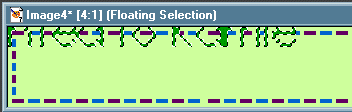



 this will pop up a dialog box, asking all sorts of information, no
worries. The first window is the size of the image. I generally just
click the first radio button - same as the first image frame - this
saves time for trying to remember the size of my image. Click next.
this will pop up a dialog box, asking all sorts of information, no
worries. The first window is the size of the image. I generally just
click the first radio button - same as the first image frame - this
saves time for trying to remember the size of my image. Click next.