|
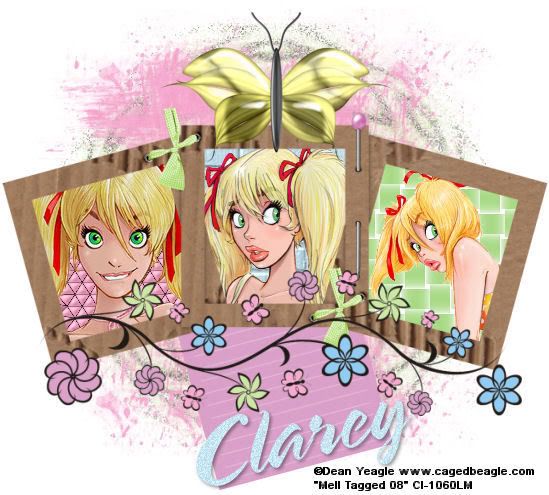
Spring Breeze
Tools needed
PSP- I used version 9 but it should work with all.
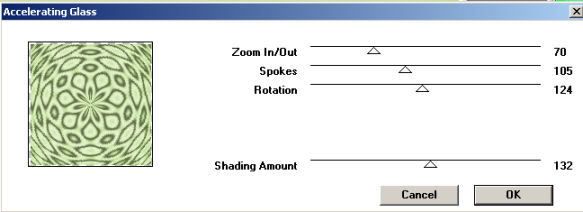
Filter-Filter Factory B-Accelerating Glass. THIS IS OPTIONAL
3 Tubes of choice- I used to work of Dean Yeagle who is a PTU artist. His work can be brought at CILM. You MUST have a license to use his art.
Mask- I used WSL_Mask192 and WSL_Mask146(optional)which can be downloaded at the link HERE under downloads.But you can use any mask you like.
(Masks are used with permission from Chelle at Weescotslass)
Scrapkit- Spring Breeze. This is a PTU kit I purchased from Clarey at Clareysdesignz
HERE. You may use another scrapkit if you do not wish to purchase this, It costs the same amount as a tube roughly so its cheap.
Font of choice or the one i used which is called Spring
Ok.Lets get started..
1. Open a new image 550 x 550 and floodfill with white
2. Open up paper of choice and paste as a new layer.Resize by about 85%
3. Open up your mask and go to layers, new mask layer from image and find your mask. click ok and delete the mask layer and then merge group
4.This is optional but i added another plain paper above the white layer,resized by 80% and added the following filter settings
5. I also added another mask to this layer.I used WSL_Mask146.
6. Now Copy and paste frame of choice, I used #4 from the kit. resize so it fits on your working page.
7.Select inside of the first frame with your magic wand, selections modify, expand by 5,
8.Layers new layer and floodfill with color of choice or a paper of choice. I used a color from my tube.
9. Keeping selected, copy and paste your tube as a new layer, position it and on your frame layer, layers,selection invert and hit delete on your tube layer.
10. Repeat steps 7,8,9 for the other 2 sections.
11. I also added some texture filters to the backgrounds behind each tube
12. Merge Visable your tube and background layers and postion below your frame layer
13.Open up the doodles and add some doodles of choice and position anywhere you like
14. Open up any other embellishments you would like to use.
15. Add your �Information
16. Add your name and any other text
17. Crop and Resize
18. File Save As
YOUR DONE!
This Tutorial was written on the 27th March 2008 by Mell aka Babylicious36
This tutorial is written using my imagination and is in no way copied from any other tutorial. Please do not Steal.. You may print this out for future use.
This page was assembled by Mell aka Babylicious36
Artwork �Dean Yeagle www.cagedbeagle.com CI-1060LM | 