|
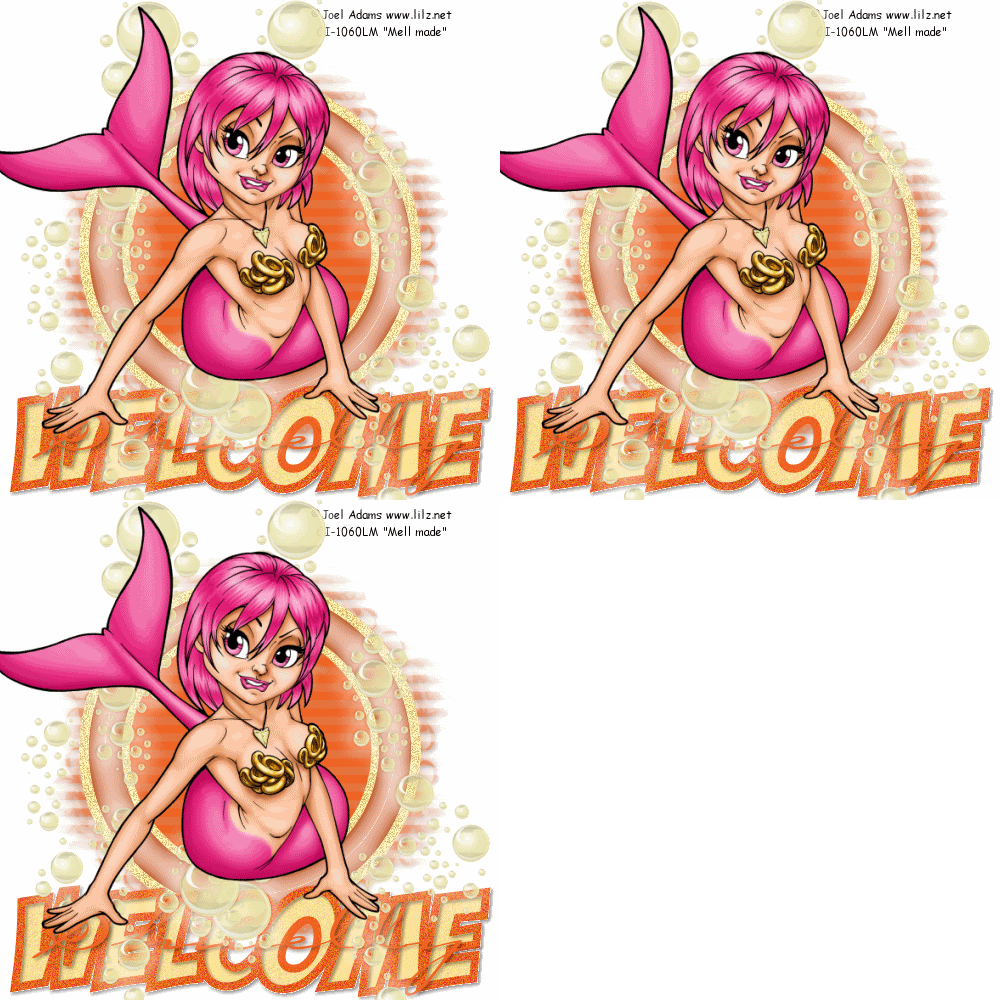
Mermaid Ring
Tools needed
PSP- I used PSP X but it should work with all.
Animation Shop
Filters Used: Eyecandy 4000 Glass and DSB Flux-Bright Noise
Tube/Image of choice: I used the art of Joel Adams who is a PTU artist. You MUST have a license to use his art. You can purchase his art from CILM.
Font/s of choice: I used BadaBoom and Oceanside-Regular which can be downloaded for free at Fonts101.
Mask of choice: I used WSL_Mask 105 by Chelle of Weescotslass. You can download it from the download section on her site
Lets get started!!!
1.Open a new image 500 X 500transparent and flood fill with white
2. Select your Circle preset shap, foreground bright color from your tube,background null and width 10
3.Draw out a large circle. See my tag for reference. Objects, align centre in middle of canvas and Convert to raster,
4. Duplicate and resize the duplicate by 75%. Merge visable these 2 layers.
5. Magic wand between the 2 circles(see my tag for reference), Selections, modify expand by 1. Layers new layer and flood fill with dark color from tube. Keep selected
6. Filters, eyecandy 4000 glass with the following settings.Select none and move the layer below.
7.Select your preset layer again, Select all, float, defloat and duplicate 2 times for a total of 3 layers.
8. On the first layer, DSB Flux Noise with the following settings
9. Repeat for the duplicates but hit mix 1 time on the first duplicate and 2 times on the 2nd duplicate. Select none.
10. Click on your white background, Layers new raster layer and flood fill with color from tube.
11. Layers, mask layer from disk and select your mask of choice,Click ok
12. On your layer palette, delete the mask layer and merge group, Give your mask a drop shadow. I used the settings below
13. Open up your tube of choice and paste as a new layer, resize if needed and position on your circle.
14.Open up your font of choice. Foreground dark color from your tube and background dark color from your tube. Width of 10.
15. Type out your text of choice and click okay, resize if needed and convert to raster.
16. Magic wand inside of the dark color and duplicate 2 times, Add some noise to each layer, I used the PSP noise. Settings of your choice,
17. Add your name with the other font of choice.
18. Add your �Information.
19. Layers new layer and add some bubbles of choice, I used the ones supplied with PSP
20. Hide all your duplicate layers, merge group and paste as a new animation in animation shop.
21. Hide these layers and unhide the 1st duplicates, edit, copy merged and paste after current animation.
22. Repeat for the 2nd duplicate
23. View ANimation and if your happy, file save as and follow the prompts
Your Done!!
Thankyou for trying this tutorial
This Tutorial was written on the 27th September 2008 by Mell aka Babylicious36
ALL TUTORIALS ARE REGISTERED WITH TWI.
This tutorial is written using my imagination and is in no way copied from any other tutorial. Please do not Steal.. You may print this out for future use.
This page was assembled by Mell aka Babylicious36
Artwork �Joel Adams www.lilz.net CI-1060LM | 


