Let's Start!
1. Open up your tube or image of
choice
2. Layers new raster layer and
floodfill with a gradient of choice.
3. Use the following Penta-Color Dot
settings and click ok
4. Image Add Borders Black 2(all),
Image add borders again, change color to color from
tube and 5(all) Image add borders again, Black
2(all)
5.Open up a new Image 550 x 425 and
flood fill with the gradient we used above
6. Copy and paste your bordered image
as a new layer and resize by at least 75%
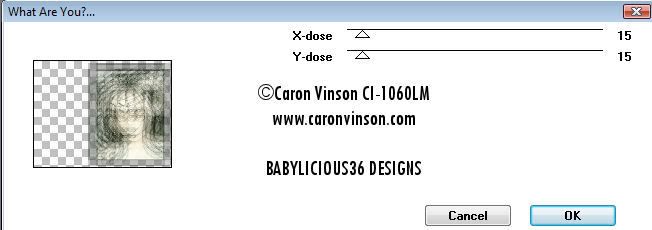
7.Duplicate your borederd image and on
the original use the following Toadies- What Are You
settings
8. Now select your gradient layer and
use the following Funhouse- Twister settings, click
ok
9. Now open a flower of choice, resize
by 50% and duplicate
10. Merge visable these 2 layers and
change the opacity to 50 and rotate left 90%
11. Move the flowers to the left side
of your tag
12. On your gradient filled layer,
layers, load mask from disk, select mask and click
ok
13. On your layer palette delete mask
layer and merge group, give it a drop shadow of
-1,-1,100,0.00 Black
14. Layers, new raster layer and flood
fill with gradient again, move this layer to the
bottom and use the following Cybia Screenworks
filter settings
15. Give your bordered image a give it
a drop shadow of -1,-1,100,0.00 Black
16. Now add some wort art of choice, I
wrote my own..
17. Add your name and �Information
18. Image Add Borders Black 2(all),
Image add borders again, change color to color from
tube and 5(all) Image add borders again, Black
2(all)
19. Magic wand inside of your colored
part of the frame and use the following Xenofex 2
Constellation settings
20. Select none, edit, copy and paste
as a new animation in animation shop
21. Back to psp, undo select none,
undo constellation, repeat the settings but change
the random seed
22.Select none, edit, copy and
paste after current animation in animation shop
23.. Back to psp, undo select
none, undo constellation, repeat the settings
but change the random seed
24..Select none, edit, copy
and paste after current animation in
animation shop
25. You should now have 3
frames in animation shop, view animation
26. If your happy with the
results, file save as and follow the prompts
This Tutorial was written on the
10th February 2009 by Mell aka Babylicious36
This tutorial is written using my
imagination and is in no way copied from any other
tutorial. Please do not Steal.. You may print this out
for future use.