|
Forum Set
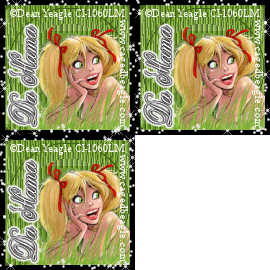

Tools needed
PSP- I used version 9 but it should work with all.
Animation Shop
Filters- FilterFactory Gallery D-Centripedal Twirl(Optional),Xenofex 2 Constellation
Tube of choice- I used the art of Dean Yeagle who is an artist at CILM. You MUST have a license to use his work.
Font of choice. I used Old Script for the name and a simple font for the �Information
Ok.Lets get started..
First we are gonna make our signature tag.
1. Open up a new image 400 width X 200 height
2. Add a border 5 symmetric and color of choice, I used black and now click ok
3. Promote background to layer then Magic wand the white section and hit delete, Select none.
4. Layers, new raster layer and select 2 colors from your tube, preferably a light and dark color and use as a gradient, your choice of settings.
5.Flood fill this new layer and move it below the black border
6.Effects, texture effect blinds with the following settings 5,50,black and both boxes UNCHECKED. Click ok
7.Add a filter effect of choice, I used Filter Factory Gallery D-Centripedal Twirl with the following settings 235 and 7
8.Layers new raster layer, flood fill with white and move to the bottom.
8. On your gradient layer change the opacity to 80%
9. Copy and paste your tube as a new layer, resize and position. I used a tube that was laying down and gave it a drop shadow of 2,2,40,5.00 Black
10 Add your �Information making sure you use a color that can be seen
11. Add your text and Position
12. Select your Border layer with your magic wand, and duplicate 2 times for a total of 3 layers
13. On your first layer go to Xenofex 2 Constellation and choose a setting. I used Small Star Constellation with the following settings

14. Repeat for 2nd and 3rd layers hitting random each time
15. Hide the top 2 border layers and edit copy merged and paste as a new animation in animation shop
16. Back to psp hide first layer and unhide 2nd, edit copy merged and paste after current frame in animation shop
17. again back to psp, hide 2nd layer and unhide 3rd layer, edit copy merged and paste after current frame in animation shop
18.In animation shop if your satisfied go to file save as and save your work.
AVATAR
The avatar is done the same as the sig tag but only smaller. So just follow the sig tag instructions but this time open a new image 125 X 125 and only use a small section of your chosen tube.
YOUR DONE!
This Tutorial was written on the 9th April 2008 by Mell aka Babylicious36
This tutorial is written using my imagination and is in no way copied from any other tutorial. Please do not Steal.. You may print this out for future use.
This page was assembled by Mell aka Babylicious36
Artwork � Dean Yeagle www.cagedbeagle.com CI-1060LM | 