Lets get started!!!
1. Open up the template you just
downloaded, Shift D and close the original.
2. Before we can started you will need
to change the Hue/Saturation on each layer to 255, 0
3. Making sure your on the layer Copy
of Raster 1. Magic wand inside this layer
4. Layers, new raster layer and paste
into selection paper of choice, I used Paper 6
Select None.
5.Now click on layer Raster 2 and
magic wand inside, selections, modify expand by 2.
6. Layers, new raster layer and paste
into selection your image of choice. Selected none
and move this layer below raster 2.
7. Merge visible Raster 3 and Copy of
raster 3. Magic wand inside of both rectangles
8. Open up another paper of choice and
paste into selection. Select None and move both
layers below raster 5 and copy of raster 5.
9. Now merge visible Raster 5 and copy
of raster 5, Select all, float, defloat and paste
into selection a glitter paper of choice. Select
None
10. On this same layer add a drop
shadow of 2,2,80,5.00 Black
11. Open up paper 7 and crop it so you
have 1 of the butterflies. Copy
12. Magic wand inside of the bottom
circle and paste into selection. Select none and
repeat from the top circle.
13. Give both circle borders a drop
shadow of 2, 2, 80, 5.00 Black
14. Magic wand inside of Raster 2,
Open up Bling 1 and paste as a new layer, position
it inside raster 2 up the top.
15. On raster 2 go to selections
invert and then hit delete on bling 1 layer. Select
none and move this layer below Raster 2.
16. On the Bling layer, go to Adjust,
add/remove noise, Add noise- Random 60% and
Monochrome checked
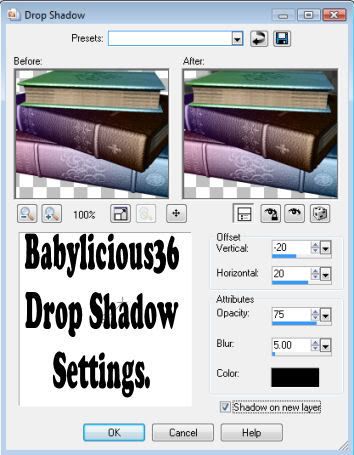
17. Open up the books and resize by
50%. Copy and paste as a new layer and position to
the bottom left (See my tag for reference)
18. Dropshadow with the following
settings
19. Open up the wings1, star charm,
Fairy Megan#2, bow of choice, Resize each layer and
copy and paste and position them on your tag. Drop
Shadow each layer with 2,2,80, 5.00 Black
20. Open up the white clouds, copy and
paste them as a new layer, and position them to the
top right of your image so it half sits on the
image.
22. Open up Fairy Dust of choice, I
used the first 1. Copy and paste as a new layer and
resize by 80% position it so it looks like its
coming out of the fairys wand
23. Open up wings 2 and paste as a new
layer, Filters-Mura Meisters Copies with the
following settings
24. Resize this layer so its slightly
bigger then your tags (so the wings hang out when
its at the bottom of the tag)
25. On this same
layer use the following Xero Soft Mood Settings.
26. Add Name and any word art of choice
27. Add ©Information and please make sure its
correct.
28. Crop your image and file save as.
Your Done!!
Below is another copy I did
but used a mask instead of the wings for the
background
This Tutorial was written on the the
29th
March 2009 by Mell aka Babylicious36
ALL TUTORIALS ARE REGISTERED WITH
TWI.
This tutorial is written using my
imagination and is in no way copied from any other
tutorial. Please do not Steal.. You may print this out
for future use.
This page was assembled by Mell aka
Babylicious36
Artwork ©Suzanne Woolcott
www.gorjuss.co.uk
AMIMEBA