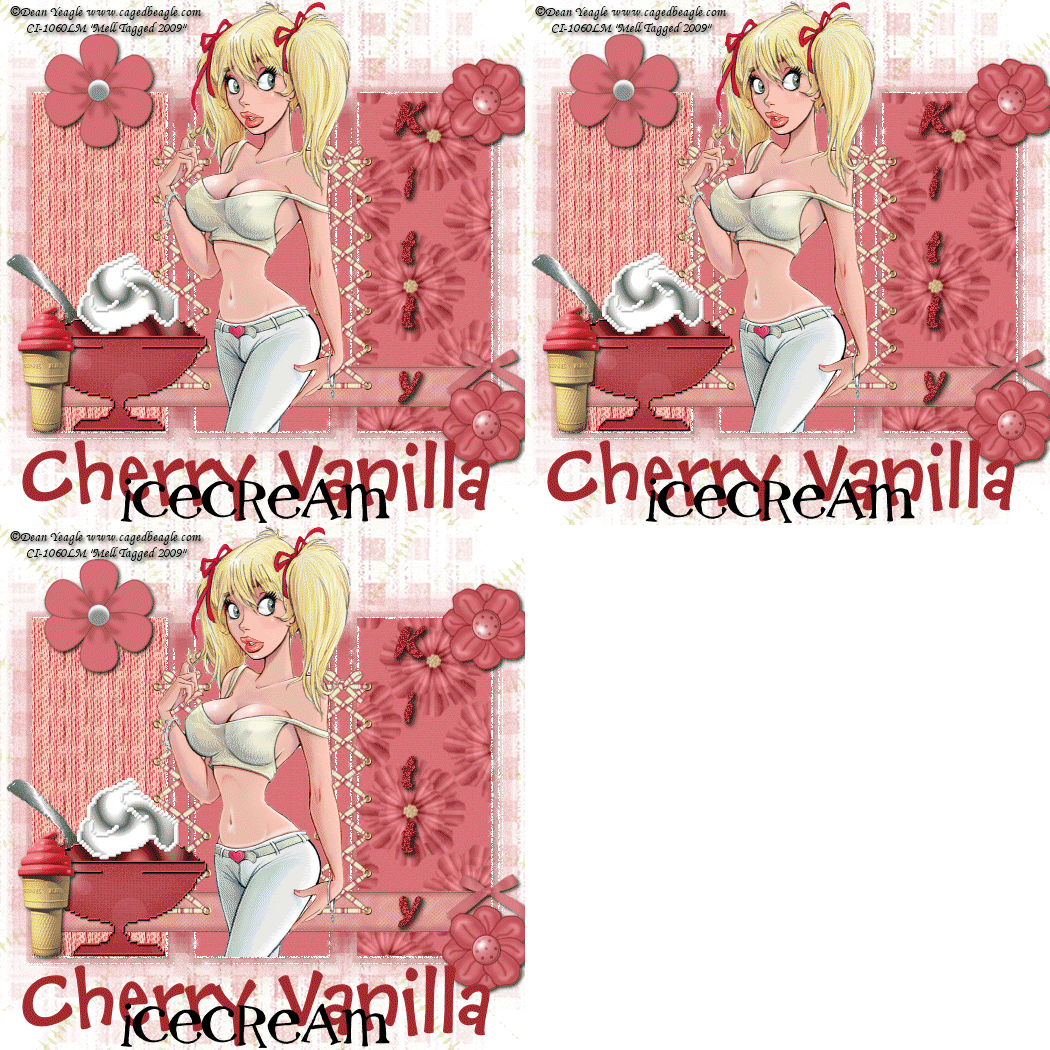
Lets get started!!!
1. Open a new Image 525 x 525 and
flood fill with white.
2. Select all, Layers, new raster
layer and floodfill with color of choice, Select
none.
3. Layers, Load/Save Mask, Load Mask
from disk, Select mask and click okay
4. On your layer palette, delete mask
layer and merge group.
5. Select your selections tool and
draw a rectangle in the middle frame. Selections
Invert
6. Open up your tube of choice and
paste as a new layer, position and erase any that is
hanging over the frame. Select None
7. Duplicate your mask layer and move
below the original, use the following Toadies What
are you settings
8. Duplicate 2 times for a total of 3
layers, On the first layer, DSB Flux Bight Noise 15
Mix
9. Repeat for the second and third
layers but click mix each time, Hide the 2 duplicate
layers
10. Open up 2 papers of choice and
resize both
11. Select your selections tool and
draw a rectangle in the left frame, Layers new
raster and paste into selection paper of choice,
Select none.
12. Repeat step 11 but this time for
the right frame and use another paper of choice.
13. Open up lacing of choice, resize
by 50% then 50% again, Copy and paste as a new layer
on your working tagg
14. Position in between the left and
middle frames, Dupliate, Image Mirror, merge these 2
layers down and move below the tube
15. Layers, new raster, flood fill
with paper or color of choice, Layers, Load/Save
Mask, load mask from disk, select mask of choice and
click ok
16. On your layer palette, delete mask
layer and merge group, move this layer to the bottom
above the white background and resize by 125%
17. Add embellishments of choice, I
used a few flowers, ribbons and also the ice cream
cone and sundae
18. Give each layer a slight drop
shadow
19. Add wordart of text of choice
20. Add �Information
21. Select your original mask layer,
duplicate 2 times and on the first layer use the
following Xenofex 2 Constellation Settings
22. Repeat for the 2nd and third
layers but hit random seed each time, hide the 2
duplicates
23. Edit copy merged and paste as a
new animation in animation shop
24. Back to psp, hide the first layers
of the dsb flux mask and the original mask and
unhide the middle layers edit copy merged and paste
after current frame in animation shop..
25. Back to psp, hide the middle
layers of the dsb flux mask and the original mask
and unhide the third layers edit copy merged and
paste after current frame in animation shop..
16. View Animation and if your happy
File Save as and follow the prompts
This Tutorial was written on the 27th
February 2009 by Mell aka Babylicious36
This tutorial is written using my
imagination and is in no way copied from any other
tutorial. Please do not Steal.. You may print this out
for future use.