IO Commander

Controlling your Model Railroad from a PC.


Rev. October 97 - Minor text changes


Instructions for building master controller :
This card has three main functions
- Power suply with current limiter for switches
- Power suply for digital IC's (5V) stabilized
- Decoder for 4 upper bits
- Driver circuits for turnout left and right


Component list for SWP128R1
IC1,IC2 4N25Opto coupler
IC3 7805 5Vpositive voltage regulator
IC4 741544 to 16 decoder
T1, T3BD135 NPN Power Transistor
T2, T4BC546 NPN Transistor
D1 - D41N4001 Diode
C1,C22200uf Electrolytic condensator 35 Volt
R1270 ohm 2 watt resistor
R2,R382 ohm, 1 watt resistor
R4 - R151K ohm 1/4 Watt resistor
R16,R1710K ohm 1/4 watt resitor
DB25 male plug for parallel Printer Port

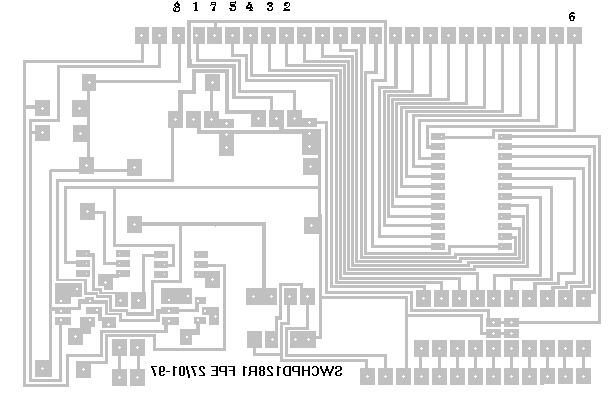
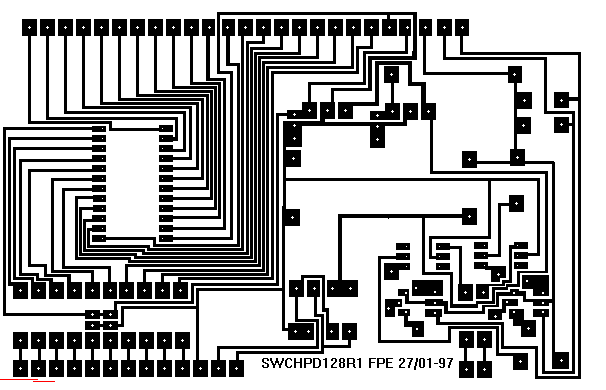
Printet circuit board layout from soldering side:

Unfortunately, both Netscape Communicator and Microsoft Internet Explorer does not handle GIF pictures very well. Therefore, I suggest that you download swp128r1.bmp instead. Load it into Windows Paint and print it on a Laser Printer with size 97% (This is how I do it you might need to select another size) Then you are ready to photocopy it onto the PCB, and etching. After etching you need to drill all the holes. I use 0.7 mm holes, except for the connectors where I use 1.2 mm.
swp128r1.bmp
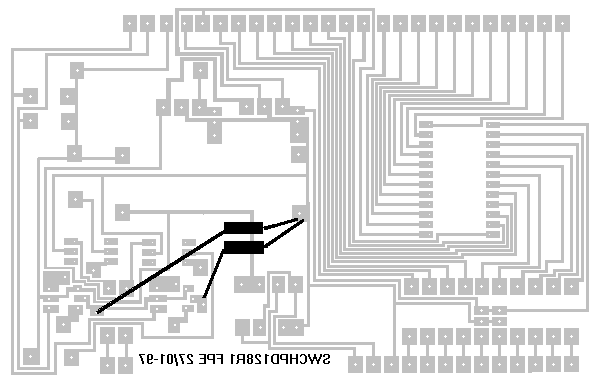
Soldering step 1.

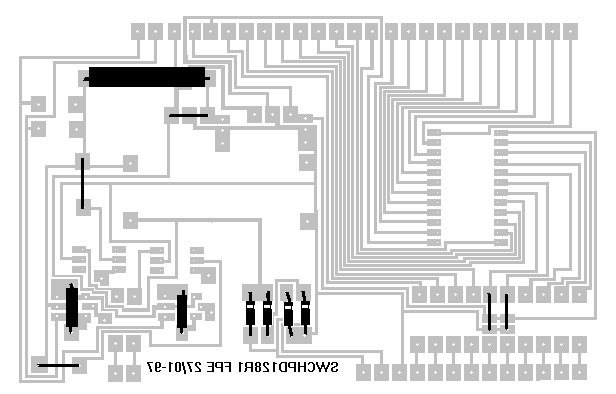
This is a picture of the component side of the PCB.
Wires are shown as black lines - only solder at each end of wire
Components for step 1 is shown in black
The upper big black rectangle is power resistor R1
The small one at left is R2 followed by R3
In the midle is the four diodes with a white line at the cathode size
Start by soldering five wires as shown on the picture above
Mount resistor R1 (270 ohm 2 watt)
Mount resistor R2 and R3 (540 ohm, 1 watt)
Mount diode D1, D2, D3 and D4 (1N4001) - make shure that the Cathode ring point in the correct direction
continue with step 2


Soldering step 2

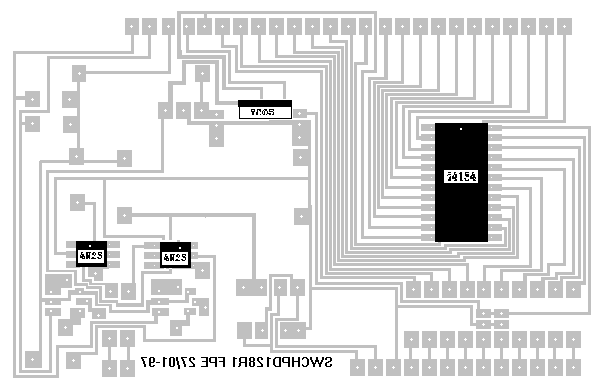
The picture shows the placement of the four Integrated circuits IC1, IC2, IC3 and IC4
IC1 - 4N25 (on the far left in the picture)is a Opto coupler for setting a switch in position 1
IC2 - 4N25 (To the left of IC1) is a opto coupler for setting a switch in position 0
IC3 - 7805 (in the midle of the picture) is a 5V positive voltage regulator
IC4 - 74LS154 (to the right in the picture) is a 4 to 16 decoder used for selecting driver cards
I suggest that you mount IC1, IC2 and IC4 in sockets - not because they are likely to fail, but it makes it a lot easier when testing the card later on.
mount IC1 - make shure that connector 1 is placed in upper left corner in the picture.
mount IC2 - make shure that connector 1 is placed in upper left corner in the picture.
mount IC3 - make shure that the cooling metal is placed as indicated with the black line (Uppwards)
mount the socket for IC4 (you will not need this IC until you want to controll more than 16 switches
continue with step 3

Soldering step 3

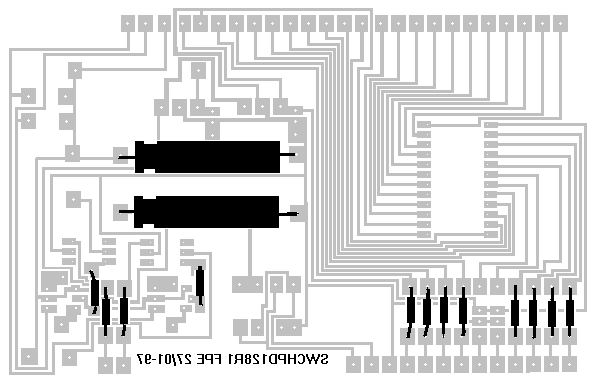
this picture shows the two big Electrolytic Condencators C1 and C2, and the 12 small 1k ohm resitors
C1 on top are for voltage stabilisation after D1 - D4, C2 are charged from R1 to give the switches enought current for (After discharging the current will be verry low - making shure that the switches will not be burnt out if anything goes wrong)
Start by mounting R4 - R15 (1K 1/4 Watt)
Mount C1 and C2 - make shure that + goes to left- as indicated on the picture

Soldering step 4

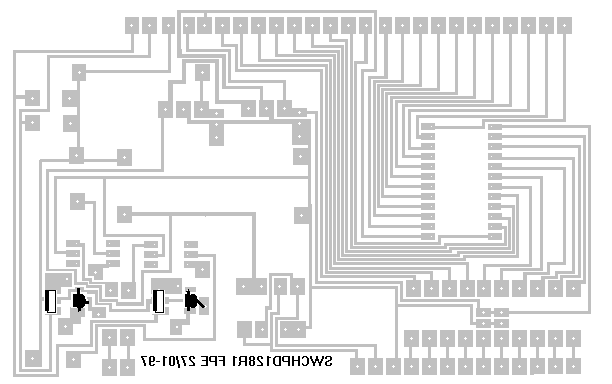
This Picture shows the four transitors T1,T2,T3,T4
T1 - (To the far Left) Is a BD135 Power Transistor
T2 - (To the right of T1) is a BC546
T1 and T2 are responsible for driving the switch to the 1 position after a signal from IC1
T3 (BD 135) and T4 (Bc546) does the same for the 0 position
Start by Mounting T1 and T3 make shure that the heat metal goes to the left (as indicated on the picture)
Continue with T2 and T4 - make shure that the flat size goes to the left (as indicated on the picture)

Soldering step 5

After Designing the PCB, I found out that there was a lot of current leaks in the driver circuit. To remove that I had to add R16 and R17 (Both 10K ohm 1/4 watt). There are not any holes for R16 and R17 - therefore I mounted them on the soldering size - but remember to insulate the leads.
After soldering R16 and R17 - you are finished mounting components.
next step is connect DB25 plug for printer port


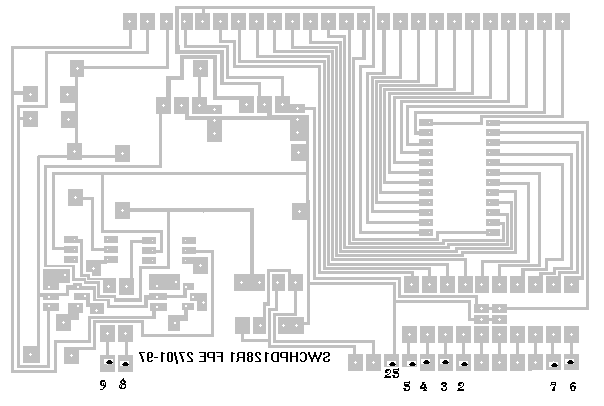
Connect DB25 plug for parallel Printer Port

This picture shows how to connect the DB25 plug for the printer port
(from left 9 8 nc nc 25 5 4 3 2 nc nc nc nc 7 6)
Solder the plug, but do not plug it into your PC yet.
Next step is connecting Power

Connecting Power

This picture shows how to connect 16 Volt Alternating current to the card
Before you connect Power check once more that all components have been placed correct on the board and that you have not shorted anything
Remove IC2, IC3 and IC4.
Connect Power briefly - Look for smoke
If everything looks OK, reconnect you should now have approx. 20 volt DC across both Condensators
You should also have +5 Volt on the left leg of IC3.
If everything looks OK - remove power, insert IC1 and IC2 and reconnect Power.
If everything look OK - remove power and Continue with next step

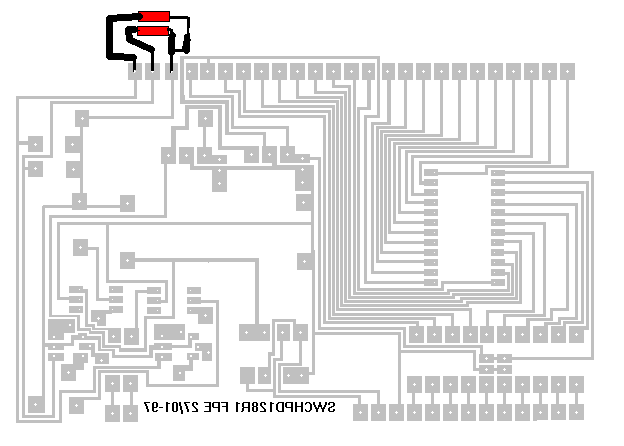
Connecting test turnout

This Picture shows how to temporary connect a test Turnout.
Connect the wires, and reconnect power - Look for smoke and listen for noise, if everything is quit, try to temporary connect a test lead from the 5 volt left leg of IC3 to pin 8 on the DB25. If the Turnout switches remove the lead, Then try pin 9, and then Pin 8 once more. If everything works OK, try to leave the test lead on and see if Condenser C2 discharge (Switches does not get Hot).
If everything is still OK
disconnect Power
shutdown PC
Connect DB25 to PC
Turn ON PC
Start test program - This will be available in October 1997


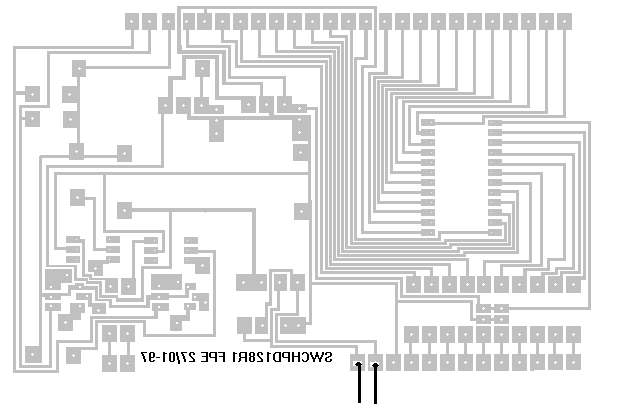
Connecting Turnout Driver Cards

This Picture Shows how to connect driver cards
(from left nc nc 8 1 7 5 4 3 2 and 6 to the far right)
Numbers references pin number on the driver card

Driver card no 2 should be connected to the same pins except that pin 6 should be connected to the second from left instead of the leftmost. Card three to the third from right etc.

This page hosted by get your own Free Home Page
Hosted by www.Geocities.ws

1