I want to talk some more about capturing video this time, because I think I should share what I’ve learned over time and during the process of making the King tutorial video. This is by no means an exhaustive list of methods, but it covers what I think are the best options to get HQ video sources for editing purposes.
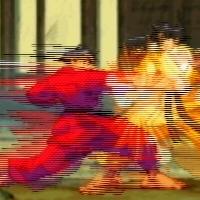
What I talked about shortly in the last post on this subject was interlacing, it’s a pretty key concept in video capture from NTSC (or PAL) sources such as game consoles. Both 3S and CvS2 run at 60 frames per second internally and, for the most part, don’t really care about what happens to the frames they output because that’s the hardware’s responsibility. The console’s GPU encodes the signal to be sent to your analog display device either through composite, component or coax cables. In the encoding process the GPU takes the even horizontal lines of one frame and sends them to the screen and then it takes the next frame and grabs the uneven lines and sends those then the next frame’s even lines again etc. In essence your display device is still getting 60 frames per second but it’s getting only half the lines. Televisions make this look good because the image is not sharp and it somewhat blurs the colors so that the human eye can not tell the difference. One set of lines that used to be a full frame is called a field. When two sequenced fields (even+uneven) are stored in one image, like when you record using your capture card, that image is referred to as being interlaced. On computer displays, which have progressive scan displays (all lines are shown every time the screen refreshes), you can very clearly see the even and uneven lines whenever something in the image moves a lot. These unaligned interwoven fields create an effect referred to as mice-teeth. You want to get rid of these because not only don’t they look good as-is, they will look much worse if you apply special effects and use regular video compression on them.
To remove mice-teeth you use a deinterlacer. The simplest deinterlacers just combine the two fields into one image by averaging/blending each pair of adjacent lines then doubling the vertical resolution. This process creates a lot of redundant information, but at least now you don’t have mice-teeth. What you have now is ghosting. In high motion scenes you’ll clearly see the two frames, on which this image was based, blended together. This is not pleasant to look at, but at least it’s an improvement. There are other deinterlacing methods that involve more complex computation such as motion detection, since only moving parts of the image create these unaligned fields. Such deinterlacing algorithms try to figure out what’s moving based on previous and sometimes future frames. Many deinterlacers separate the fields and generate a complete frame from each field producing double the amount of frames than the original interlaced video. This is the closest you will get to the original “intended” 60fps data that the game works with. These interlacers are called bob-deinterlacers because they align every other frame so that there is no shudder. Shudder is a side effect of putting even and uneven lines at the same height. Dumb bob-interlacers only use the data in the field to create the frame, which usually means some form of interpolation. Since interpolation cannot reproduce the line that used to be there accurately, dumb bob-deinterlacers produce a lot of flickering. A fun factoid is that to get 30 fps deinterlaced video, some algorithms first bob-deinterlace the video (their default mode) and then only grab every other frame to be output into the new 30 fps video.
For 2D graphics sources such as cartoons and sprite-based videogames it is very important to have sharp images because there are many planes of high contrasting color; any artifacts would be very visible. Motion detection/compensation deinterlacers are not perfect, obviously, so they will make mistakes about what part of the screen is moving and what part is not. This produces artifacts, usually in the form of an after-image. In warm gradient colored images, such as in live-action movies and 3D scenes, these artifacts are often mistakenly interpreted as extra detail or motion blurring. Because dumb/simple bob-deinterlacing creates way too much flickering/shimmering and 60 fps AVI’s are very large in size and require more processing power to be played, you are left with two choices: 1) use advanced deinterlacers to preserve some data and run the risk of getting artifacts, or 2) only use one field. I like option 2 for most applications such as combo or match videos simply because the image looks extremely sharp and there is no flickering or artifacts. Aside from sacrificing some of the original data you will need to double vertical resolution which seems like an awful waste of bytes, but as long as you use linear or bi-cubic resizing you’ll fool the audience into thinking there’s new data in between the original lines. Even this is not an issue if your target video is not higher than half the original signal’s height. In NTSC signals this is 240 lines, which is what many videos out there use as vertical resolution anyway. This solves the whole interlacing problem at the same time as it makes the capture process a whole lot less processor intensive.
For an example take a look at my “A Closer Look at KING” video. You will notice how in scenes with an N-Groove bar that the bar has NO white border at the bottom. This is because I only captured one set of lines and that bottom border is only one pixel thick. If I had chosen to capture the other field I it would have been visible. That should give you an idea of the effect of capturing a single field can have.