
QDL's windowing system library is unlike any other. It is fully platform-independant, yet has all the features and expandability you would expect from a platform-specific windowing system.
Most windowing libraries take a feature set that is the lowest (worst) common denominator among target platforms. QDL takes the opposite approach: it implements a feature set that has most of the features of all target platforms, plus more features dreamed up from nowhere. Features not implemented in the OS are implemented in a buffer layer between the QDL program and the platform's native windowing system.
Instead of asking, how can the API be mapped most closely to the target platforms, we ask, how can the API be simpler, while make the programmer's job easier and faster? The classes were designed first, and the question of how to implement them was answered afterward.
The QDL Windowing System (QWS) is not a complete programming framework, like MFC. Instead, it encapsulates only those things related to event-driven programming and graphical user interface (GUI) management.
Graphical user interfaces based on windows are organized in a structure called the window tree, and it's a lot like the file system tree that you see when you open Windows Explorer. top-level windows are like the folders in your root directory: they are not inside anything else. child windows, meanwhile, are inside other windows. Child windows can be nested as deep as you need; it is possible to have a window inside a window inside a window inside a window. If a window A is nested within a window B, then A is said to be the child of B, and B is said to be the parent or the container of A.
The location of child windows is specified relative to the parent window. So, when the parent moves, the child moves also. If the coordinates of the child are (0, 0), the child is always in the top-left corner of the parent.
Some types of windows are designed to be parent windows, and some child windows. Windows with title bars, minimize buttons and so on are designed to be parent windows. Edit controls and check boxes, on the other hand, are designed to be child windows.
The parent of a window can be changed, or even removed, making the window a top-level window.
When windows overlap, one window must be displayed on top, and the other underneath (partially or fully covered by the one on top). The z-order specifies the order of display. In the QWS, the highest window has a Z-order of zero, with the number increasing by one for each window, down to the bottom of the Z-order.
There is a Z-order list at each level of window nesting. So, for example, if you have a dialog box with a number of child controls in it, each of those controls has a Z-order that specifies the relative order of display within the dialog box. The order only becomes apparent, however, when two controls overlap.
There are also two Z-order classes: normal and always-on-top, where all always-on-top windows are above normal windows. A normal window can ask to be on top, but will never be placed above always-on-top windows. Conversely, an always-on-top window can ask to be on the bottom, but it will never be below the normal windows, only below the other always-on-top windows.
One window can "own" another. First of all, this means that the fate of the owner window is linked to the fate of the owned window: When the owner is destroyed (physically removed from the system's GUI), the owned window goes down with it. In fact, all owned windows are destroyed immediately before the owner is destroyed.
Windows that have a parent must either be owned by the parent, or owned by one of the parent's immediate children.
When the owner is not also the parent, the following applies:
Ownership is transferrable from one window to another. For example, if your application displays its documents in several top-level windows, it can transfer a toolbox window from one document to another as the user switches documents. An owned window can also be "set free" by making it owned by no window. A window that is not owned is always a top-level window, since, if it is made a child window, it is then owned by the parent.
The following picture illustrates the difference between parentage and ownership.
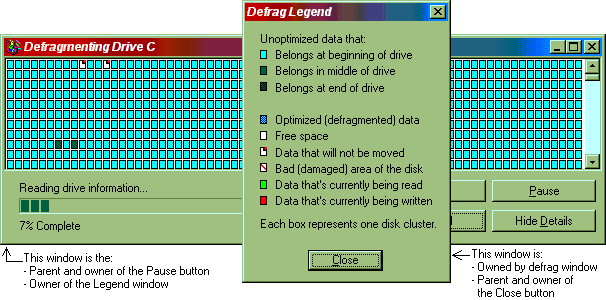
Every window has two spacial areas: the client area and the nonclient area. The nonclient area consists of the outside borders of the window, while the client area is the space inside the window. The nonclient area gets its name from the fact that you, the programmer, mainly don't have control over it. You are a client application of the GUI, and this part of the window belongs to the GUI. The nonclient area houses the title bar, outer scroll bars, size box and/or border, and menu bar. The operating system decides where to place these elements, how big they are, and precisely how they look. Every window has a nonclient area. However, some windows have no title or borders, and so have a zero-width nonclient area. Child windows are clipped so they do not paint on the nonclient area.
The client area, meanwhile, belongs to you. You can paint whatever you want on it, put child windows in it, vandalize it, whatever.
A control is a window that is designed to be used as a childless window whose parent is a dialog box. It is a single user interace element designed to take input from the user and/or convey some information to the user.
Generally, the appearance of a control, and the part of a control designated as the nonclient area, may vary from OS to OS. Therefore, you probably shouldn't draw on a control unless you know you have full control over its appearance.
Most QWS classes are derived from WSWindow, an abstract class which contains functions that are common to all windows. This class, like all classes in the windowing system, starts with "WS" for "Windowing System". Being abstract, this class doesn't really do much, but relies on its derived classes to implement the various functions. Unless otherwise noted, all of the following classes are derived from it.
The WSNormalWindow class represents a window suitable for use as a top-level window. It can have a title bar, scroll bars, a menu bar, borders, and the ability to minimize and maximize.
The WSPaneFrame class represents a window that can be arbitrarily divided up into sections called panes. The sections are also separate windows represented by instances of the WSPane class. An option of the WSPaneFrame class make it possible for sections to be "torn off" and float above the frame's parent window. This class can be used as the basis for very powerful user interfaces. Typically, a WSPaneFrame window will fill the entire client are of a top-level WSNormalWindow.
Similar in many ways to the WSPaneFrame class, this class's window divides itself up into sections to be used by one or more toolbars. Each toolbar is represented by a WSToolbar class. Toolbars can be torn from the frame and float above the frame's parent window.
The WSValue and WSString abstract classes have no base class, and do not represent GUI elements. Instead, they represent the value and string many windows and controls have associated with them. Control classes multiply inherit from WSWindow and one or both of these classes to provide a uniform interface for storing and retrieving a control's value or string. For example, the WSTextBox control inherits WSWindow, WSValue and WSString. The WSWindow members deal with the placement and style of the window, WSValue deals with the contents of the text field as an integer, and WSString deals with the contents of the text field as a string.
The following classes derive from WSValue: WSCheckBox, WSRadioButton, WSTextBox, WSSlider, WSListBox, WSComboBox, WSProgressBar, WSTabSheet.
The following classes derive from WSString: WSNormalWindow, WSLabel, WSButton, WSGroupBox, WSCheckBox, WSRadioButton, WSTextBox, WSListBox, WSComboBox, WSTabSheet, WSStatusBar.
WSGrid
The WSGrid abstract class also does not have a base class.
WSMessageBox
| Table of Contents | Qwertie's Site/Mirror |
|