MilliKeys Download & Installation
Q. Where do I download MilliKeys?
A. From SourceForge.net. After clicking the following
link, select the latest version under the heading "millikeys".
Be sure not to select a file with "Src" in the name. The "Src"
files only contain the source code, which you only might be interested in if
you are a programmer.
Q. How do I install it?
A. MilliKeys comes in two parts, the app and the hack: MilliKeys.prc
and MKeyHack.prc. Both of these should be installed on your
handheld. The app (application) is used to configure MilliKeys, and the hack
(more pleasantly known as the system extension) is the thing that
actually takes over the graffiti area. The hack requires an extension manager,
preferably X-Master. If you don't have one already,
download X-Master. (X-Master
home page)
-
Transfer MilliKeys.prc and MKeyHack.prc to your handheld with HotSync (or
whatever software you use)
-
Make your stamp and put it on.
-
On your handheld, run MilliKeys from the app launcher. The hack will not work
until you have run MilliKeys from the launcher at least once. Once you start
the program, you should calibrate your stamp by pressing the "Calibrate" button
(on the Master Controls screen.)
-
Technical note: The built-in layout is contained in the app, not the hack. When
you run the app for the first time, it copies the built-in layout to a Palm
database (.pdb file) where it can then be used by the hack.
-
If you have X-Master, you'll see an "Enable hack" option on the Master
Controls screen. Enable this option to begin using MilliKeys.
If you have
some other extension manager, open it and enable MilliKeys.
-
For the built-in layout, be aware that the applications button is now in the
lower-left corner of the graffiti area, not the upper-left corner. The circled
letters on the stamp replace the silkscreen buttons: A is for Applications, M
is for Menu, F is for Find, and C is for calculator. You must use an up stroke
to use the Calculator or Find functions.
Q. Where do I get the stamp?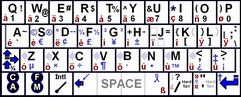
At the present time, MilliKeys is a do-it-yourself project; you cannot order
keyboard stamps from me. However, if you would be interested in paying for
stamps (and thereby donating to my university education), please
contact me. If several people want stamps (or one person wants to make
a large order), I'll look into making them for you.
-
Print out a stamp for your layout, such as this one,
scaled down to the size of your graffiti area. For example, a Palm III's
graffiti area is about 2.30 inches wide and 0.87 inches high. The characters
are very small, so use your printer's highest quality setting and finest
dithering. If applicable, turn off the "maintain aspect ratio" option
(Unfortunately I made the stamps with a slightly incorrect aspect ratio,
because my initial measurements were incorrect.)
How you print the stamp depends
on what software you have. IrfanView
is a freeware image viewer that can print to an exact size. The free
office suite OpenOffice.org (http://OpenOffice.org)
can also do this: insert the stamp into a blank document, then resize it with
the mouse, and as you drag it, the size in inches is displayed in the status
bar.
-
Cut it down to size.
-
Tape or glue it on the screen. Avoid glueing directly on the
screen unless you're sure it's safe for your Palm; you might want to use an
easily removable label or screen protector underneath. For example, I have
WriteRight screen protectors so it's safe for me to glue it right on (I
wouldn't recommend this brand in general, however). Alternately, print directly
onto a sticky label. Another possibility is to plaster your graffiti area with
clear tape (or any thin tape that leaves minimal residue when removed), then
glue the stamp to the tape.
Q. How do I use MilliKeys?
-
See if your concern is covered in the FAQ
-
Using the built-in layout: see Features
-
Using the configuration program: click the Help button on each screen for
information on that screen's features.

[ Home Page @ SourceForge /
Geocities | SourceForge
Summary | Qwertie's Page
]