Need Help??

This page defines several features of our webpage in clear easy to understand text. The topics are as follows;

The Opening Page

This is the first page you see when you goto to our webpage, www.geocities.com/Magic_Guys, on this page you will have the option of enter the site using the 800x600 version or lower or 1024x768 version. This only refers to the resolution that your computer is currently using.

If you are unsure of which resolution your computer is currently using, here are a few simple steps you can follow to check you resolution:

  1. Click the "Start" button on the bottom left (default) and goto Settings.
  2. Move the mouse over to the "Control Panel" option and left click is left handed or right click if right handed.
  3. You should have a explorer window open now. Please double-click on the icon that says, Display (usually in the first or second row).
  4. You are now on a separate screen now. There should be several tabs above click the one that says, "Settings".
  5. On this screen on the bottom right-hand corner should be a area called "Screen Area"(win95/98/NT) or something similar (win2000,etc..).
  6. Within that box it should say the current resolution currently in use.
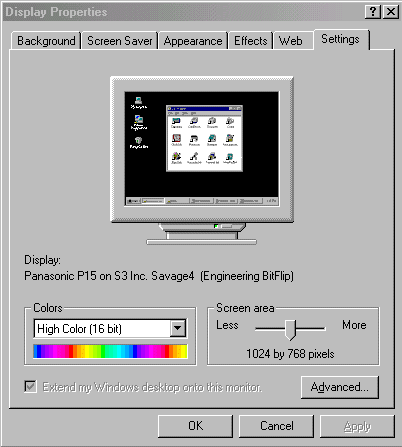
Screen of Display in Windows 95/98
(example of the screen that you should now be looking at.)

Also, i have indicated to thought who are using browsers that does not support frames, you can use the dropdown box to browse the webpage. In case you are wondering if you browser can support frames, you can do a simple test(for internet explorer and netscape only):

  1. Click the Help options from the menu and click about option. Some examples are "About Communicator" (netscape communicator) and "About Internet Explorer".
  2. In the about box if the version of your browser in less than 4 then there is a good chance that you browser don't support frames.


The Left Frame

Are entering the site using the 800x600 option or 1024x768 option you will have 3 main areas. The first being The Left Frame. This frame will display the various links to surf the site. There are some aspects of it I need to tell you about though.

The buttons will appear like this:
 

Mark's Links
Bond's Links
Craig's Links
Sign Guestbook
View Guestbook
Ok, when the mouse if moved over either one of these buttons it will light-up.

Tip: When you move the mouse over a item such as Mark's Want List, if you keep your mouse there for a second, it will display the purpose of that button.
 

The Return to Previous Screen feature on the sub-left screens

On sub-left screens you will have an addition two features, they are Return to Previous Menu and Index.
  • Return to Previous Menu Return to Previous Menu > This options simple means return you to the default left menu.

  • Index Index >The index is a list of all areas on the site(Site Map).


The Top Frame

The top frame displays a welcome message and several small icons in a white background. These small icons represent the different Magic the Gathering sets and expansions available. If you click on either of them, in the screen directly below will be displayed the CL(Card List) for that set or expansion.

How to Contact Us?

Craig Sheppard (Webmaster and One of the Magic Guys)
 
Email: [email protected]       
ICQ#: 31039278

Nickname: Majesta
Visit Craig's Homepage

Mark Mercer
 
Email: [email protected]
ICQ#: 12668092

Nickname: kaervek
Visit Mark's Homepage

Bond Hideout
 
Email: [email protected]


©Copyright 2000 by Craig Sheppard

Hosted by www.Geocities.ws

1