Character Map, version 2.0
This is MY version!
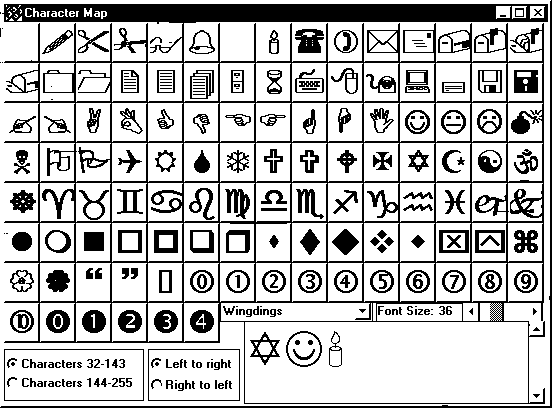
I have found that the Character Map program which comes with Windows is very useful, but could be even more useful if it only had a few improvements. I have made a version of Character Map which you can download, which has the following features:
- The original program required you to double-click the desired character, or to press the "Select" button. In this version, you only need to click once, and the character will be added to the text box.
- The pictures of each character are much larger than they had been on the original program. If they are still not large enough for your needs, the font size of the Text Box is easily changed.
- Characters can be added to the Text Box in right-to-left sequence. With this feature, you can very easily create words or phrases in Hebrew. (Text longer than a line is still subject to left-to-right wrapping, however.)
- If you click in the Text Box, you'll be able to type and edit it however you like, prior to copying it to your other program. (When you are done, you need to manually select the text, and enter control-c to copy it to the clipboard.)
- One weakness of this program is that because the buttons are so large, only one half of the characters can be displayed at a time. You can easily go back and forth between the two halves.
DOWNLOAD DIRECTIONS:
When you click on "Download it now!", your browser will ask you where to save the file. Choose anywhere you like. It will then download the file "charmap.zip".After saving it on your disk, rename it to be "charmap.exe". This is because GeoCities will not allow any files with the "exe" extension. (I presume this is for anti-virus security reasons, or something like that.) You can actually give it any name you want, not just "charmap", but the "exe" is essential.
This program was originally written on a Windows 95 system (or maybe even Windows 3.1). In that environment, it was able to run without any setup at all. Unfortunately, despite the claims Microsoft makes about new operating systems being able to run old programs, Windows XP is not able to run my CharMap without additional steps. Specifically, you need a program called VBRUN300.DLL. If you don't already have this program on your system, you can get it for free from Microsoft by clicking here.
OPERATING INSTRUCTIONS:
To start the program, you can just double-click on it in Explorer or File Manager. If you are on Win95 or better, you can create and icon from there too. When it starts, it takes a few seconds to read through your list of fonts. I wish this part could go faster, but at least I made it display the fonts on screen so that you'll realize that it is working.
First, decide whether you want the typing to go left-to-right (as in English) or right-to-left (as in Hebrew). Please note that this only affects what happens when you press the buttons on the screen. Actual typing in the Text Box is always left-to-right.
Next, pick a font. One great use of this program is the ability to go through many of your fonts and see large samples of what the letters look like, without ever bothering with selecting any characters. When you find a font you like, just go back to your other program and use it.
If you don't see the letters you want, try alternating between the "Characters 32-143" and "Characters 144-255" options. One of the very frustrating things about trying to type Hebrew on a computer is that there is no standardization of which characters appear as which letters. In some fonts, the Hebrew letters are mapped to characters which are not on the keyboard, or in strange places on the keyboard. By flipping back and forth between your favorite Hebrew font and any English font, you can usually tell how hard it will be to use that font from the keyboard.
Click buttons for the characters you want. If you press the wrong button, or press them in the wrong order, you can edit the text either here or in your other program. To edit them here, click in the Text Box, and use the usual text-editing keys: Backspace, Delete, Ctrl-C, Ctrl-V, etc.
When you are done, you need to go to the Text Box, select the text, and press Ctrl-C to copy the text. (This is one thing that the Windows version does better than mine. Big deal.) Then go to your other program, whatever it is - WordPerfect, Publisher, Word, I don't care - and paste it in, either with Ctrl-V, or from your program's Edit menu. It is quite possible that your text will not be visible on your screen, even after successfully pasting it in. This would happen because the characters are there, but not in the font you want. Just select those characters, or the whole line, or whatever, and change their font to the one you want. Everything should now look pretty close to what you want.
By the way,