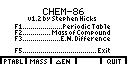
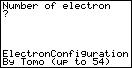
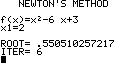

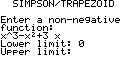
If you're taking AP Chemistry, you're probably in a very high math class, likely AP Calculus. As a math student of the '90s, you also probably own a graphing calculator. Many graphing calculator owners are aware that their machines are capable of running games, but very few take the time to load their calculators with useful math and science programs. To help you avoid tedious referencing and calculations, I'm introducing you to some programs that you'll want to clear up some memory for. Sorry, but I only know software for the TI-85 and the TI-86.
For those of you who are unfamiliar with the process of transferring software from your computer to your calculator, I'll go through a quick tutorial. It's pretty easy. First you'll need to obtain a link cable to connect your calculator to your computer. There are two types: parallel and serial cables. I recommend getting a parallel cable because they will work with all computers. You can buy a cable from Texas Instruments for a substantial amount of money (roughly $30 or $50 depending on which package you get), but I suggest buying one from somebody who makes them at home, or downloading schematics and building one yourself. I bought mine from a guy who offered great service and a good price. Visit his page at Scott's TI Page. Or, you can obtain schematics for building your own cable at Nick's TI Calculator Site. This site includes a large amount of information on link cables that will allow you to make an informed decision on what kind of link you should buy or make.
To complete the connection between your computer and calculator, you'll have to obtain a computer program that is designed to send and receive software to and from your calculator. There are a number of programs out there, but you can download two good ones right here (they're in .zip format): Cal (DOS) and W32Tran8x v1.1 for Windows 95 & NT. Cal has more features (such as a link cable test and a screen capturing feature), but W32Tran8x is Windows based. I use both.
Once you have your cable and linking program, you'll need to download software from the internet. There are dozens of sites that provide software. The best by far, I believe, is ticalc.org. Wherever you go, you'll find that there is a very comprehensive selection. Whether you use the TI-85 or the TI-86, there are two types of programs: BASIC programs and Assembly programs. BASIC programs are written in the TI programming language. Some of you may have written your own programs using the Program Editor, accessible from the [PRGM] key on your calculator. Assembly programs are written in machine code, a much more efficient way of executing commands than through TI BASIC.
Here's where TI-85 and TI-86 owners have to go their separate ways. While you can easily run TI BASIC programs on either calculator, running assembly programs is different for each machine. Follow the directions for your calculator:
TI-85
The TI-85 is not able to run assembly programs directly. You must install a shell on your calculator that allows programs to directly access your hardware. There are a number of shells out there (read about the popular ones at ticalc.org). My personal favorite is OS-85. I find it to be the easiest shell to use. Regardless of which shell you like most, the installation process is the same. You MUST copy any programs, constants, etc. that you want to keep from your calculator to your computer. When you install a shell to your calculator, it sends a full backup, meaning it will obliterate anything you have on your calculator. You can now load the shell onto your calculator, but be sure to read any documentation that comes with the shell before you proceed. Once you've completed this, press the [CUSTOM] button. The shell is accessible by pressing the [F1] key.You can still run regular BASIC programs on your calculator. However, you can now run assembly programs as well. Assembly programs will appear on your calculator as strings, but the shell will be able to discern them from regular strings. When you're downloading software, make sure you get programs that will work with your shell. For example, the Usgard shell will only run programs written for Usgard, OS-85 and ZShell run ZShell programs, etc. You're all done! Enjoy the new capabilities of your calculator!
TI-86
TI-86 owners have it much easier than TI-85 owners. Aware of the large desire for assembly programs among TI calculator users, Texas Instruments designed the TI-86 with the ability to run assembly programs without a shell. Just copy the programs you want onto your calculator. To run assembly programs, type "ASM(program name)" on the main screen. You cannot run TI-85 assembly programs on the 86 (unless you have an emulator. AuroraShell Enhanced, for example). To make it easier to access your assembly programs, you can install a shell (such as AShell) on your calculator. It does NOT destroy your memory; you can copy it onto your calculator like any other program. Enjoy!
Looking for a program that can transfer files to the TI-89 using a parallel cable? Here you go. Sorry, I had to Zip it although it's really small (Geocities won't let me upload an .exe).
S89 - TI-89 Parallel Linking Software