Including a new stamp record has an earlier step: Insert all the data you�ll
need on the basic tables like country, topic, etc. When this is done you can
insert your new stamp record on the database. You�ll do that on the Stamps tab
screen.
Just cllick on the Insert Record Button on the Navigation Tool Bar, and you
have a new record open to insert data. You�ll have the key fields filled by a
sugestion of the program, that will be a copy of the key data from the record you
just before you clicked the inseert key. This will make it quicker to insert a
new data in general. And if the sugestion is not what you need, just change it.
After you have filled the fields you want, just click on the Post Button, or
simply move to another record, and your changes will be posted.
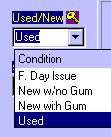
The comboboxes are always automaticly filled with the possible choises, that
come from the basic tables data you filled before. Just click on the right arrow
and you get the options; select one by clicking on it.
Including each stamp record
 The fields marked with a key symbol are obligatory, and must be filled. This
are exatly the same fields the Automatic Database generator will do for you.
The fields marked with a key symbol are obligatory, and must be filled. This
are exatly the same fields the Automatic Database generator will do for you.